

Your website runs on PHP, and the version it uses affects speed, security and whether your plugins work at all. Running an outdated release is one of the easiest ways to invite problems, yet many site owners never check. The good news is that you can change the PHP version in cPanel hosting in a couple of minutes, without touching any code. This guide explains how to pick the right PHP version, where to find the setting in your cPanel hosting account, how to test safely and what to do if something breaks. Get it right, and your website can run smoothly, stay secure and remain compatible with your plugins and themes.
What Is a PHP Version, and Why Does It Matter?
PHP is the programming language behind WordPress, WooCommerce, Joomla and countless custom sites. Each PHP version is a numbered release, such as 8.3 or 8.4. Newer versions generally run faster and receive security fixes. Old ones stop getting fixes entirely, which leaves known vulnerabilities open to attackers.
Your hosting account runs one version at a time, and cPanel lets you switch it yourself.
Which PHP Version Should You Choose?
Choose the newest PHP version that your CMS, theme and plugins officially support. As of November 2026, that usually means PHP 8.3, 8.4 or 8.5, depending on what your host offers. Avoid anything older than 8.2.
Here’s where the supported releases stand:
- PHP 8.1 and older have reached end of life, with no further security support.
- PHP 8.2 only receives security fixes, and that ends on 31 December 2026.
- PHP 8.3 is supported for security fixes until the end of 2027.
- PHP 8.4 is supported for security fixes until the end of 2028.
- PHP 8.5, released in November 2025, is supported until the end of 2029.
Support dates change over time, so check the supported versions page on php.net when you plan an upgrade.
A newer version isn’t always better for your particular site. If an old plugin hasn’t been updated in years, it may break on the latest release. The best choice is the newest version your whole setup can handle.
Signs You Should Change Your PHP Version
- Your site runs on an end-of-life version
- A plugin, theme or CMS update says it needs a newer PHP version
- Your host or WordPress dashboard shows a PHP upgrade warning
- Your site feels slow and you’re running a very old release
- A security scan flags outdated software
Before You Change the PHP Version
Back up your site, check compatibility and note your current version so you can roll back.
- Take a full backup of your files and database. Our guide to cPanel backup and restore shows how.
- Write down your current PHP version in case you need to switch back.
- Update your CMS, plugins and themes first. Developers often fix compatibility problems in recent releases.
- Check compatibility. Look at your plugin and theme pages for supported PHP versions, and remove anything abandoned or unused.
- Choose a quiet time. Visitors may briefly hit errors if something doesn’t work.
- Use a staging site if you have one. Testing there is safer than testing on a live site.
Method 1: Change PHP Version in cPanel with MultiPHP Manager
Open Software > MultiPHP Manager, tick your domain, choose a version from the PHP Version dropdown and click Apply.
This is the standard tool on most cPanel servers.
- Log in to cPanel.
- Under Software, click MultiPHP Manager.
- You’ll see your domains, each with its current PHP version.
- Tick the box next to the domain you want to change.
- On the right, open the PHP Version dropdown and select the version you want.
- Click Apply.
- Wait for the confirmation message, then refresh the page to check that the new version is listed.
You can change several domains at once by ticking more than one box. Subdomains and addon domains can run different versions from your main site, which is handy if one site needs an older version while the others move ahead.
Method 2: Change PHP Version with Select PHP Version
If your host uses CloudLinux, open Software > Select PHP Version, choose a version and set it as current.
Some hosts replace or add to MultiPHP Manager with this tool. It also lets you control extensions.
- In cPanel, open Select PHP Version under Software.
- Use the dropdown near the top to choose a version.
- Click Set as current.
- Open the Extensions tab to check which PHP extensions are enabled.
- Tick any extensions your site needs, such as mysqli, curl, mbstring, gd, zip or intl.
- Save your changes if prompted.
The exact layout varies by host, and some versions of the tool apply changes per account rather than per domain.
Method 3: Ask Your Hosting Provider
If you can’t find either tool, or the version you want isn’t listed, contact your hosting support team. Some providers restrict version options on certain plans, and some only enable newer releases after testing them. Ask which versions are available on your plan.
Don’t Edit .htaccess by Hand Unless You Have To
When you change the version in cPanel, it usually adds a handler block to your .htaccess file. You may have seen lines starting with AddHandler or <IfModule mime_module>. These are generated automatically.
Avoid editing or copying them from old tutorials, since the correct lines depend on your server. If your version change doesn’t take effect, ask your host rather than guessing, and always back up .htaccess before touching it.
Adjust PHP Settings with MultiPHP INI Editor
Use Software > MultiPHP INI Editor to change limits such as memory and upload size without editing files.
Some of the most commonly adjusted settings are:
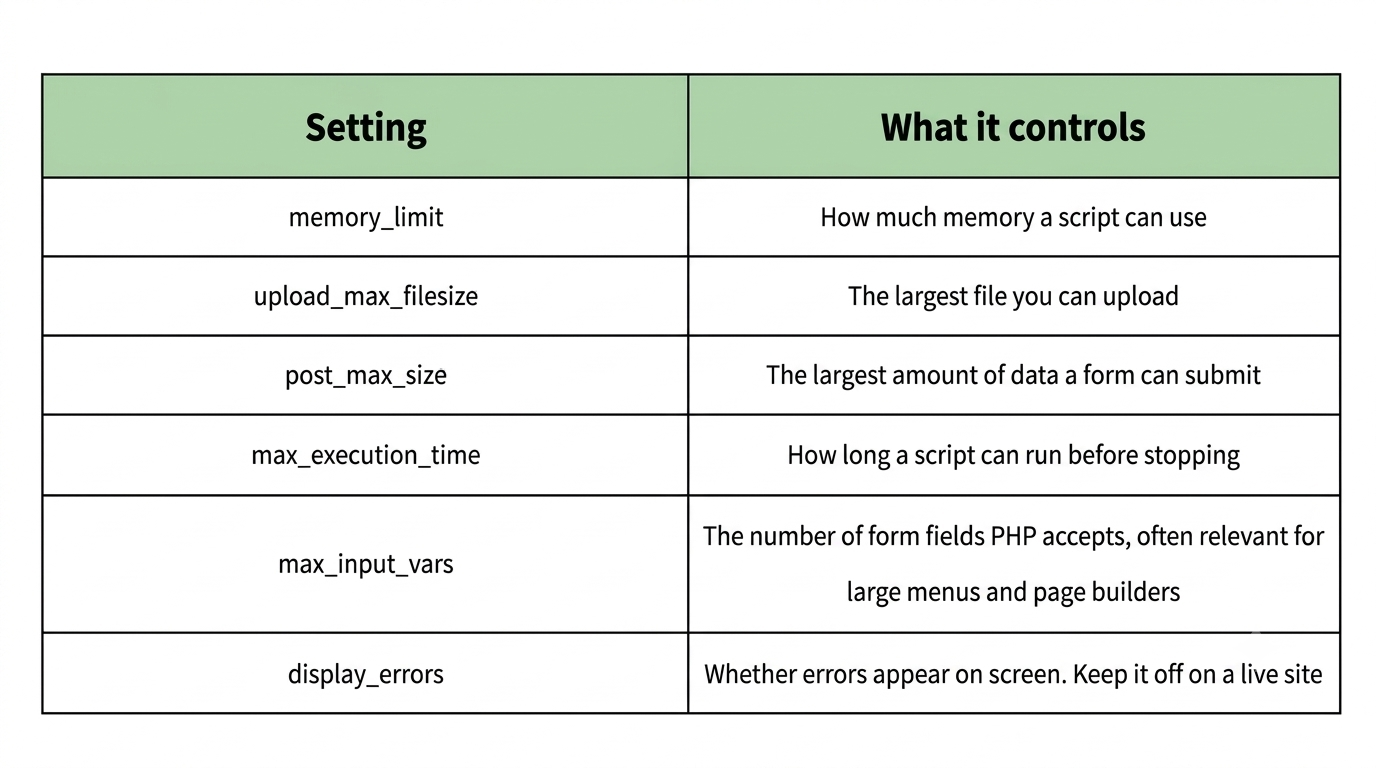
Changing these settings is optional. Make sure upload_max_filesize and post_max_size work together, and ask your host if a limit won’t change, since some plans cap them.
How to Test Your Site After Changing PHP Version
Check your site straight away:
- Load the homepage and several inner pages
- Log in to your admin area
- Test contact forms, search and any booking forms
- Go through the checkout on a store, using a test order if possible
- Check image uploads, plugins and any custom features
- Look for warnings, blank pages or layout problems
- Send and receive a test email if your site sends notifications
- Clear your site cache and any CDN cache, then test again
On WordPress, check Tools > Site Health for PHP-related notices.
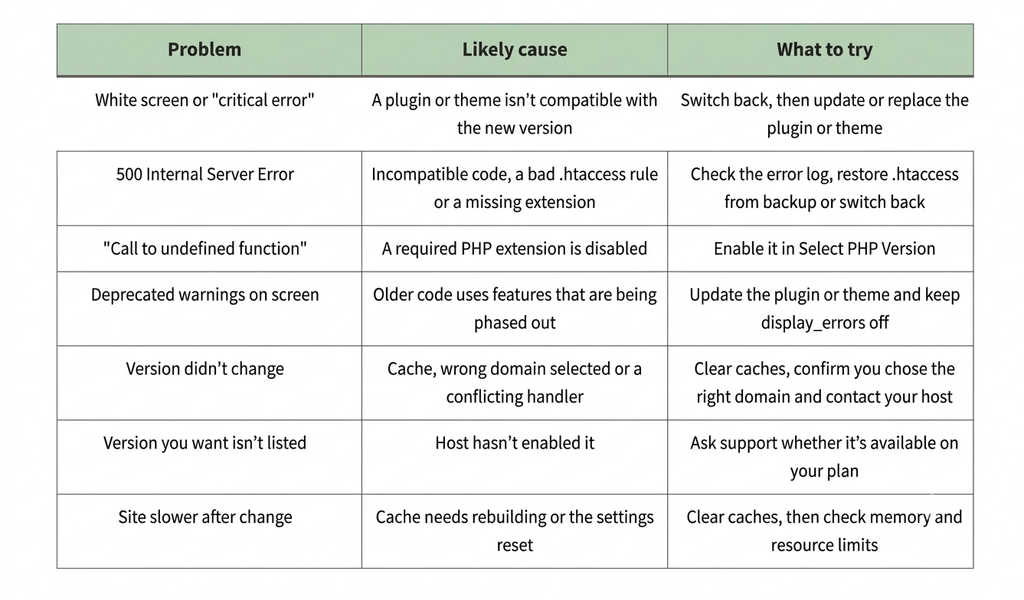
Common Problems After a PHP Change and How to Fix Them
How to Roll Back to the Previous PHP Version
If something breaks, don’t panic. You can undo the change immediately.
- Return to MultiPHP Manager or Select PHP Version.
- Choose the version you noted earlier.
- Click Apply or Set as current.
- Clear your caches and check that the site works again.
Then find the incompatible plugin or theme, update or replace it and try the upgrade again. Treat rolling back as a short-term fix, because staying on an unsupported version leaves your site exposed.
How to Check Which PHP Version You’re Running
You have a few options:
- MultiPHP Manager shows the version for every domain
- WordPress Site Health shows it under Tools > Site Health > Info > Server
- A temporary PHP info file can show it too, but delete it right after, since it reveals server details to anyone who finds it
PHP Updates and Website Security
Running a supported PHP version is one of the simplest security wins available. Unsupported versions stop receiving fixes, so any flaw found later stays open. Our guide on website hacking prevention explains how outdated software leads to break-ins, and our article on how to secure your cPanel hosting account covers other settings worth checking in the same sitting.
Choosing a Host That Keeps PHP Options Current
A good host offers several modern PHP versions, adds new ones reasonably quickly and lets you switch per domain. When comparing plans, ask which versions are available, how quickly new releases appear and whether you can change them yourself. Our 15-point checklist on what to check before buying web hosting covers more questions worth asking.
If you want a plan with flexible PHP options, explore Cyberin’s cPanel hosting plans and confirm the current PHP versions, extensions and limits before you buy.
Conclusion
You can change PHP version in cPanel in a few clicks, but the preparation matters more than the switch itself. Back up first, update your plugins and themes, choose the newest version your site supports and test everything afterwards. If something breaks, roll back, fix the cause and try again. Do this whenever a version nears the end of its support, and your site stays faster, safer and easier to maintain.
Frequently Asked Questions
1. How do I change PHP version in cPanel?
Open MultiPHP Manager under Software, tick your domain, pick a version from the PHP Version dropdown and click Apply. If your host uses Select PHP Version, choose the version and click Set as current.
2. Which PHP version is best for WordPress?
Use the newest version that WordPress and all your plugins and themes officially support. In November 2026, that’s typically PHP 8.3 or newer, though your own setup decides what works.
3. Will changing the PHP version break my website?
It can, mainly if you use outdated plugins or themes. Back up first, update your software and test straight after. You can switch back in seconds if there’s a problem.
4. Why is the PHP version I want not available in cPanel?
Your host may not have installed it yet, or your plan may restrict the choices. Ask your hosting provider which versions it supports.
5. Can I run different PHP versions for different websites?
Often, yes. MultiPHP Manager lets you set the version per domain, subdomain or addon domain, though this depends on your host.
6. How often should I update PHP?
Check at least once or twice a year, and always before your current version reaches end of life. Support dates are listed on php.net.
7. Do I need to take a backup before changing PHP?
Yes. A backup is your safety net if the change causes errors, so take one first.
