


One of the easiest things you can do to speed up your site is enable GZIP compression. This is very much related to the quality of your site for ranking. Most web hosting platforms, especially newer GZIP hosting environments, support this. (Best choice). In this guide we’ll explain what GZIP is, how it can speed up your website and how to use cPanel or.htaccess file to enable compression, and why a reliable host such as Cyberin can make this even easier.
What is GZIP?
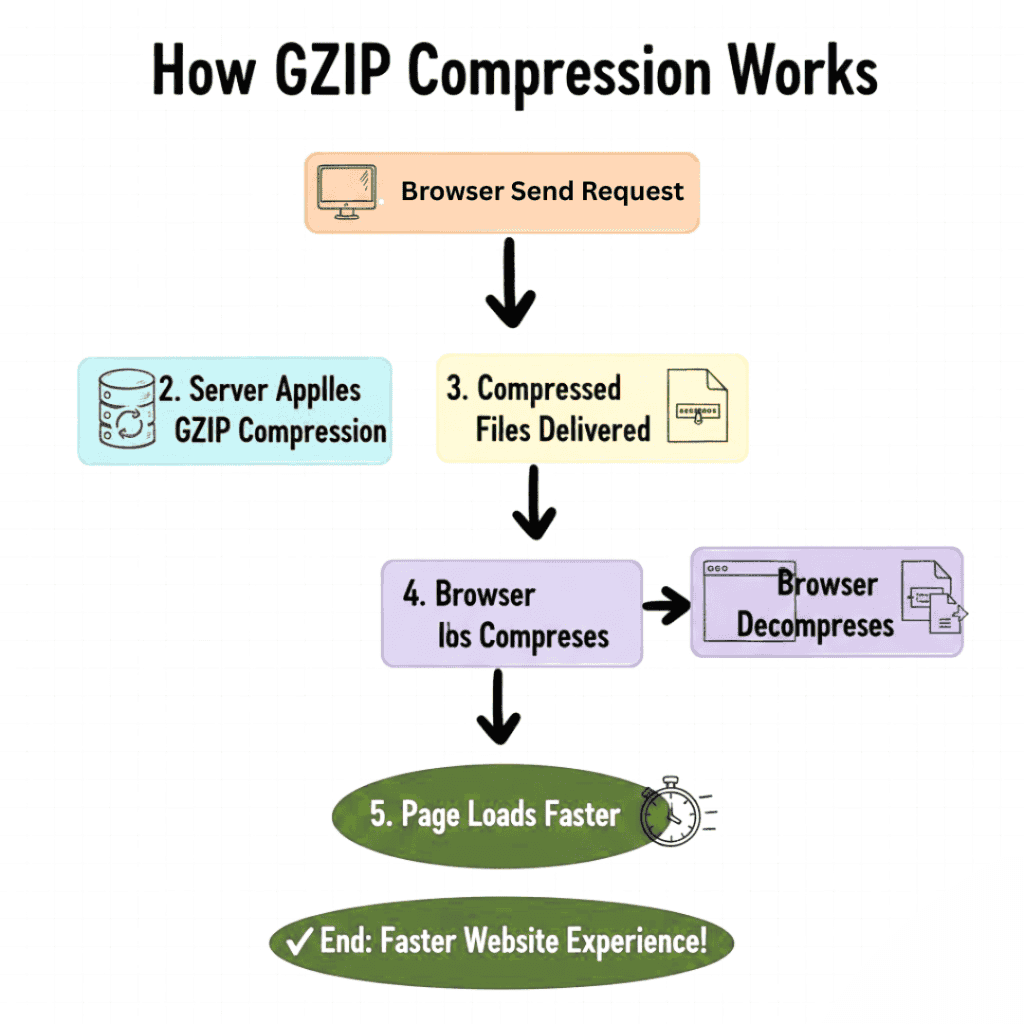
GZIP compression makes website files smaller on the server before the server sends them to the visitor’s browser. It works in the same way that ZIP files compress files on your computer.
Enable GZIP on your server and your text files will be gzipped like this:
- HTML code
- Css 2.5.3
- Javascript
- XML Extensible Markup Language
- JSON
The server compresses the files and sends them to the browser of the visitor. The browser uncompresses the files automatically, and then displays the page as usual.
Why GZIP Compression Is Important for Website Speed
There are a number of important benefits of turning on website compression for performance and SEO:
1. Pages Load Faster
GZIP can cut down on the file size by 60-80%. This means faster loading pages, particularly on slower connections.
2. Core Web Vitals are Better
Reducing the size of files will lead to better metrics like LCP (Largest Contentful Paint) and FID (First Input Delay) and an improved overall user experience.
3. Better SEO Rankings
Google will rank fast websites #1. Enabling compression is one of the easiest ways to boost SEO performance.
4. Less Use of Bandwidth
Less data from your server. This uses less bandwidth and you can save money on your hosting.
5. Works with all browsers
Most modern browsers and hosting companies support GZIP.
How to Find Out if GZIP Compression Is On
You might want to check if your host already supports it before you enable it.
You have the following free tools at your disposal:
- Check GZIP Compression giftofspeed.com .
- www.gtmetrix.com
- Google’s Page Speed Insights
Warnings like “Enable text compression” indicate that the server does not use GZIP or has configured it incorrectly.
How to Turn on GZIP Compression in Web Hosting
It’s is supported by most shared and cloud hosting services. Here are two ways to make it work.
Step 1: Turn on GZIP Compression in cPanel
If your hosting is cPanel based, GZIP is easy to enable.
Step 1: Sign in to your cPanel account
Enter the username and password that were given to you by your hosting company:
Step 2: Go to “Optimize Website”
Go to Software and locate “Optimize Website” in cPanel.
Step 3: Pick the mode of compression
Choose:
✔ Recompress all content to smaller size
With this option all supported file types will be compressed automatically.
Step 4: Click “Update Settings”
Compression enabled: GZIP.
Benefits of Setting Up cPanel GZIP
- Yes. Fast. There is no programming required.
- Works with most of the Apache based hostings
- Very good for first timers like
Method 2: Use .htaccess to Turn on GZIP Compression
If you’re not using cPanel, or want more control, you can enable GZIP through the .htaccess file.
Step 1: Open Your .htaccess File
It is located in the root folder of your site:
public_html/You can edit the file with cPanel File Manager or an FTP client.
Step 2: Add the Code for GZIP Compression
Add the following command to your ..htaccess file:
<IfModule mod_deflate.c>
AddOutputFilterByType DEFLATE text/plain
AddOutputFilterByType DEFLATE text/html
AddOutputFilterByType DEFLATE text/xml
AddOutputFilterByType DEFLATE text/css
AddOutputFilterByType DEFLATE application/xml
AddOutputFilterByType DEFLATE application/xhtml+xml
AddOutputFilterByType DEFLATE application/rss+xml
AddOutputFilterByType DEFLATE application/javascript
AddOutputFilterByType DEFLATE application/x-javascript
<IfModule>
Step 3: Keep the File
Changes are saved and take effect immediately.
Why Use the .htaccess Method?
- Works even if your host has hidden cPanel settings
- Offers greater compression control
- Can include/exclude file types
What If GZIP Still Doesn’t Work?
If compression is not working in any of the tests check:
- Make sure mod_deflate is enabled on your server.
- Some hosts need to move from Nginx to Apache.
- Browser cache plugins make it possible to change the settings.
- Troubleshooting .htaccess Conflicts
You can call up your host and ask him:
Is GZIP compression turned on and supported for my account?
Conclusion
Simplify your website’s performance by enabling GZIP hosting features. a few quick changes in cPanel or a few lines of code to your .htaccess file you can massively speed up your site, save bandwidth and improve your seo
If you own a business website, blog or online store then enabling website compression should be on top of your optimization goals.