

A solid Website Backup strategy will protect your business from data loss, cyberattacks, accidental deletion, server failures, and unexpected technical problems. Without a recent backup, restoring a compromised website can take days or be impossible. “Therefore, businesses should view backups as a part of website management, not a one-off task.
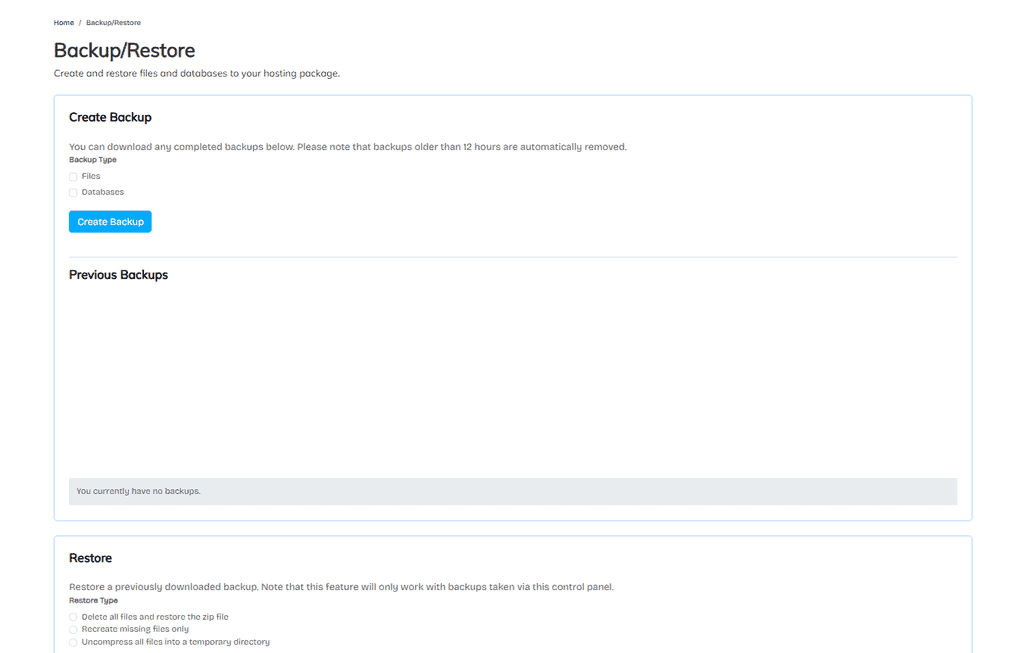
1. Create Full Website Backups
A full backup means all important files, databases, media, themes, plugins, configurations and other data associated with the website. It gives you a full copy of your website that you can restore when things go wrong.
They’re useful when you’re about to make a major update, migration, redesign, or other large change to the configuration of your site.
However, the making of these can often take up more storage space and server resources.
2. Use Incremental and Differential Backups
Incremental backup will only backup the data that has changed since the last backup. They consume less space and are generally quicker to create than full backups.
Differential backups save only the changes since the last full backup . They are larger than incremental backups, but they can make restoration easier, since you might need fewer backup files.
Bringing these together can help businesses strike the right balance between their storage, backup speed and recovery needs.
3. Automate Your Website Backups
It is easy to forget manual backups. Automated backups are scheduled on a fixed schedule so they’re more consistent with protection.
You can schedule the backups to run daily, weekly, or more often, depending on how often your website changes. If you have an e-commerce website, you are taking orders every day, so you need more frequent backups than a simple informational website.
Automation also minimizes the possibility for human error and provides the peace of mind that backups are still being made when no one is watching.
4. Keep Backups in Multiple Locations
“Don’t count on one backup location. If your website and backup are on the same server, it’s possible to have a server failure or security issue that affects both.
Backup using the simple 3-2-1 method:
- Keep at least 3 copies of critical data.
- Make copies in at least two types of storage.
- One offsite copy at minimum.
Cloud storage, external storage, and separate backup servers can also provide additional protection.
5. Back Up Your Website Database
You have a database that holds critical data, such as customer accounts, website settings, posts, product information, orders, and form submissions.
If you backup your website files but do not backup your database you may end up with an incomplete restore. Ensure your database backups are kept up-to-date with your regular file backups and stored securely.
6. Protect Backup Files
If it is not easy to access or change it then a backup is only useful. “Backup files must be stored in secure locations and access must be granted to authorized personnel only.
Use strong passwords, encrypt where possible, set up secure connection and set up access restrictions. Don’t store publicly accessible backup files in your website folders, they can be found and downloaded by attackers.
7. Test Your Backups Regularly
Backups alone are not enough. You should also test if they are restorable at all.
It’s not always obvious, but a backup file can be corrupt, incomplete, or misconfigured. Schedule periodic restoration tests and check that the restored key website features, databases, images and files work properly.
Testing provides you the peace of mind that your backup strategy will work in a real emergency.
8. Create a Website Disaster Recovery Plan
A disaster recovery plan is a list of steps your business should follow if you lose your website or data.
Your plan should include critical website components, backup locations, recovery procedures, responsible team members and restoration priorities. Provide instructions even if your main website or server is down.
Recommended Backup Schedule
The workable schedule hinges on how often your website changes:
- Daily: E-commerce sites, news sites and sites that change frequently.
- Weekly Multiple : Fresh content with a busy commercial property that’s always full.
- Weekly: Small business sites with minimal changes.
- Always make a new backup before major change updates, migrations or redesigns.
Complete Website Backup Checklist
- Back up website files.
- Back up the database.
- Automate regular backups.
- Store backups in multiple locations.
- Keep at least one offsite copy.
- Secure backup files with proper access controls.
- Check backup logs for failures.
- Test restoration regularly.
- Document recovery procedures.
- Update the disaster recovery plan when your website changes.
Conclusion
A good backup plan for a website will allow a business to minimize the downtime and recover faster from unforeseen issues. There is a place for full, incremental and differential backups. Extra protection is provided by automated schedules and offsite storage. Testing regularly is also important, because a backup that has not been tested may let you down when you need it most. Businesses can secure valuable website data and maintain online operations with more confidence through a regular backup schedule and a clear disaster recovery plan.