

phpMyAdmin is a browser-based tool that lets you manage MySQL and MariaDB databases without typing command-line instructions. If you’re on cPanel hosting in India, you can open it straight from your hosting control panel to view tables, run SQL queries, edit records, and import or export database files.
What Is phpMyAdmin?
phpMyAdmin is a free, open-source, web-based tool for managing MySQL and MariaDB databases. It gives you a visual interface for jobs that would otherwise need SQL commands or a separate database program.
So what’s a database, exactly? It’s where your website keeps everything it needs to work. A WordPress site, for example, stores its posts, pages, user accounts, comments, and settings there.
With phpMyAdmin, you can:
- View database tables and records
- Create, edit, and delete tables
- Run SQL queries
- Import and export database files
- Search for specific records
- Manage table structures and indexes
- Check and repair supported tables
One thing to get straight early: phpMyAdmin manages the database itself. It doesn’t touch your website’s files, themes, or plugins.
How Do I Open phpMyAdmin in cPanel?
If phpMyAdmin is available in your cPanel, there’s nothing to install. Here’s how to get in:
- Log in to cPanel. Sign in with your username and password.
- Find phpMyAdmin. Look in the Databases section.
- Open it. Click phpMyAdmin. On most standard cPanel setups, you won’t need to enter database credentials again, because cPanel handles access for you.
- Select your database. Pick it from the list on the left.
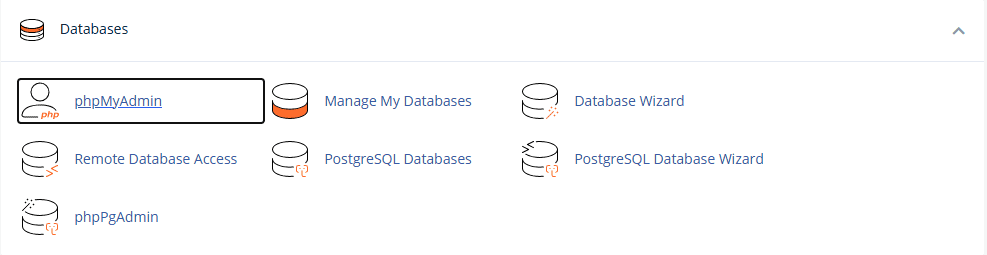
From here you can browse tables, run queries, and do everything covered below.
Note: the exact location and look of phpMyAdmin can vary with your cPanel version and hosting setup.
What Do the phpMyAdmin Tabs Do?
Open a database and you’ll see a row of tabs across the top. Here’s what the main ones are for:
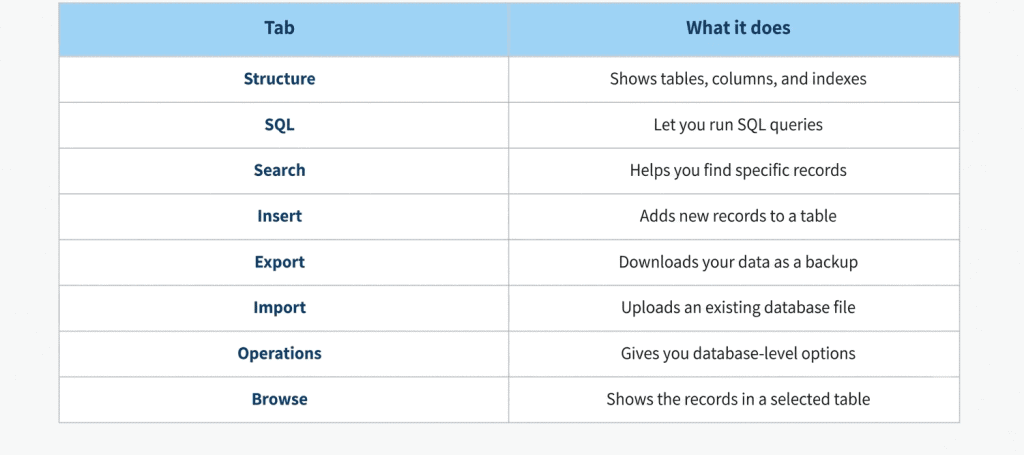
The tabs you see can change depending on whether you’ve selected a whole database or a single table. For day-to-day work, you’ll mostly use Structure, Browse, SQL, Export, and Import.
How Do I Create a MySQL Database in cPanel?
Here’s a distinction that trips up a lot of beginners: phpMyAdmin is mainly for managing databases that already exist. In a typical cPanel setup, you create the database and its user through the MySQL Database Wizard or Manage My Databases.
- Open the MySQL Database Wizard. Log in to cPanel and find it under Databases.
- Name your database. Enter a name and continue. Your hosting account may add your username as a prefix automatically.
- Create a database user. Enter a username and generate a strong password. Keep these safe, because your website application will need them to connect.
- Assign privileges. Choose the permissions your application needs. A typical website may need SELECT, INSERT, UPDATE, DELETE, CREATE, and ALTER. For WordPress, giving the user All Privileges on its own dedicated database is the common, practical choice. The key is that the user can only reach that one database.
- Finish the wizard. Your database and user now appear in cPanel.
To double-check, open phpMyAdmin and see whether your new database shows up in the list. If you’re planning to connect it to an application, our cPanel management guide shows where those details go.
How Do I View and Manage Tables?
Tables organise data in rows and columns. For example, a WordPress database has separate tables for posts, users, comments, options, etc.
How to look inside one:
- Accessing phpMyAdmin In cPanel
- Choose your database from the left-hand sidebar
- Click the table you would like
- Click Browse to see its logs
In the Structure tab you can view the columns, data types and indexes. Open your WordPress posts table and you will see the records behind your posts and pages.
One word of warning: Edit records carefully. Change the wrong value or delete something important and your site can stop working correctly.
How Do I Run SQL Queries in phpMyAdmin?
Structured Query Language (SQL) is the language you “talk” to a relational database. phpMyAdmin has a SQL tab where you can run queries directly. You will not need it for everything, but it is handy for when you want to look up, update, or manage specific records.
Here are three simple, read-only examples. To view records from a table:
sql
SELECT * FROM wp_posts;To find published posts:
sql
SELECT ID, post_title, post_status
FROM wp_posts
WHERE post_status = 'publish';
To count the records in a table:
sql
SELECT COUNT(*) FROM wp_posts;To run a query:
- Select your database
- Open the SQL tab
- Type or paste your query
- Click Go
- Read the results below
Tip: On a big table, SELECT * can return a huge amount of data. Add LIMIT 10 at the end (for example, SELECT * FROM wp_posts LIMIT 10;) to keep things quick and readable.
Important: The wp_ prefix is only an example. Your WordPress database may use a different table prefix, so check your actual table names before running any query.
How Do I Export a MySQL Database Using phpMyAdmin?
Exporting creates a downloadable copy of your database. It’s what you do before a migration, before a major update, or any time you’d like a safety net.
- Open phpMyAdmin and select the database you want to export.
- Click the Export tab.
- Choose an export method:
- Quick exports everything using the default settings.
- Custom lets you pick individual tables and other output options.
- Choose a format. SQL is the usual choice if you want to restore the database later.
- Click Export or Go, depending on your phpMyAdmin version.
Your database file will download to your computer.
One thing worth remembering: a database export is not a full website backup. It doesn’t include images, themes, plugins or other uploaded content, which need to be backed up separately.
How Do I Import a MySQL Database Using phpMyAdmin?
Importing lets you restore a database from a file, or bring one over from another hosting account. If you’ve just moved your website to a new host, this is the step that brings your content back.
- Open phpMyAdmin from cPanel.
- Select the destination database in the left sidebar. If it doesn’t exist yet, create it in cPanel first.
- Click the Import tab.
- Choose the database file from your computer. Common supported formats include SQL and compressed SQL files, depending on your server configuration.
- Check the format and import settings.
- Click Import or Go.
When it finishes, phpMyAdmin shows a success or error message.
If the import fails because the file is too big, check your hosting account’s upload and PHP limits. For larger databases, you may need a different import method supported by your hosting provider.
How Do I Edit or Delete Database Records?
Sometimes you just need to fix one entry, update a value, or remove a record. phpMyAdmin lets you do this without writing SQL.
To edit a record:
- Open your database and select the table.
- Click Browse.
- Find the record you want to change.
- Click Edit next to it.
- Update the fields you need.
- Save the changes.
To delete a record:
- Open the table and find the record.
- Click the Delete option next to it.
- Confirm when prompted.
Be extra careful deleting records in a WordPress database. Tables are connected to each other and to application logic, so removing a record without understanding its purpose can cause missing content or other problems. Whenever you’re about to change something important, export a backup first. It takes a minute and can save you hours.
What Are the Common phpMyAdmin Errors?
Databases occasionally throw a tantrum. Some errors come from permissions, others from incorrect queries, file limits or connection problems.
Here’s a quick guide:
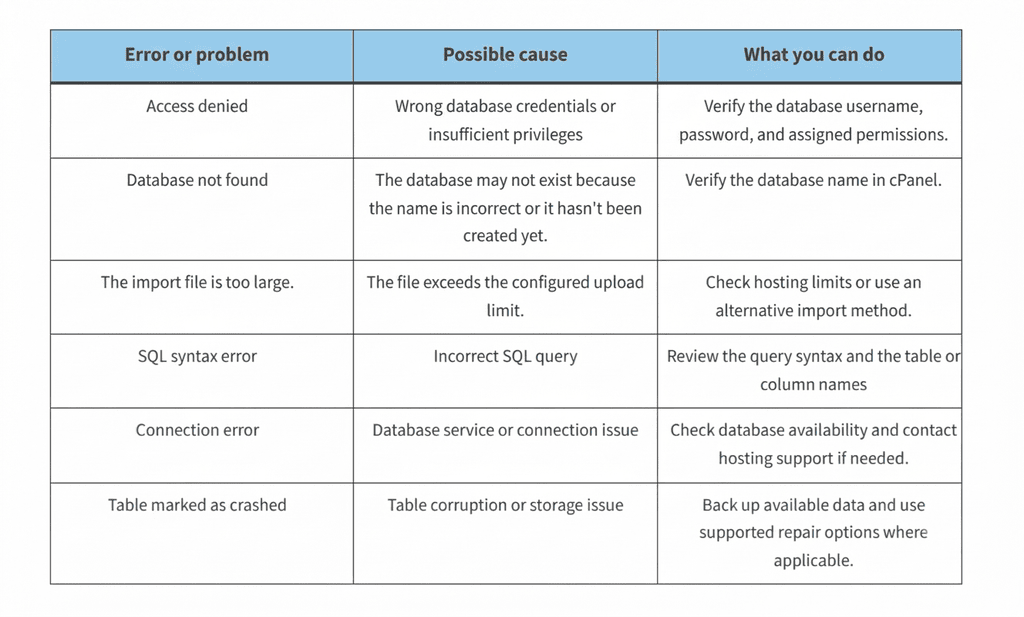
Not every database problem can be fixed from inside phpMyAdmin. If an error sticks around after you’ve checked your settings, your hosting provider may need to look into a server-side issue.
How Can I Manage Databases Safely?
Your database holds your website’s most important information, so even a small slip can matter. A few good habits go a long way:
- Back up before you change anything. Export your database before running update or delete queries.
- Check which database you’ve selected. This matters most if your account hosts several websites.
- Understand a query before you run it. If you’re not sure what it does, don’t click Go.
- Avoid unnecessary deletions. Don’t remove tables or records unless you know they’re no longer needed.
- Use strong, unique database passwords.
- Limit database privileges. Give each user only what the application needs.
- Keep credentials private. Don’t share database usernames and passwords with people who don’t need them.
These matter most when you’re working on a live website.
Conclusion
phpMyAdmin allows you to manage MySQL and MariaDB with much more ease of use. Browse your databases, view tables, run SQL queries, edit records, and import or export database files without the command line with cPanel.
Structure, SQL, Import and Export are a good place to start getting comfortable for day-to-day work. Database changes should be done carefully, especially on a live site. And be sure you know what an operation will do before you change or delete anything important. Back up often.
Frequently Asked Questions
What is phpMyAdmin used for in cPanel?
phpMyAdmin is a web-based tool for managing MySQL and MariaDB databases. You can view tables, edit records, run SQL queries, import or export database files.
How do I open phpMyAdmin in cPanel?
Log in to cPanel, find phpMyAdmin under the Databases section, and click it. Then select the database you want to manage.
Can I create a database directly in phpMyAdmin?
In a typical cPanel environment, you create databases and database users through the MySQL Database Wizard or Manage My Databases. phpMyAdmin is mainly used to manage existing databases.
Is phpMyAdmin free to use?
Yes.phpOpen Source MyAdmin is You can use it for free if your hosting provider provides it with cPanel; you don’t need to purchase a separate license.
Can I back up my entire website using phpMyAdmin?
No , phpMyAdmin exports the database info not your whole website . Don’t forget to backup your website files too, for a full backup that includes themes, plugins, images and any other content you have uploaded.
What’s the difference between MySQL and phpMyAdmin?
MySQL is a database management system which allows you to store and organise information for your website.MyAdmin is a web based tool that gives you an interface to administer MySQL databases.
Is phpMyAdmin safe to use?
Yes, if it is set up properly and accessed from a secure hosting environment. Use strong passwords, protect your cPanel login, restrict database privileges and do not run queries you do not understand.
