

A single bad plugin update, a hack or an accidental deletion can wipe out months of work in seconds. A recent backup turns that disaster into a minor inconvenience. This guide to cPanel backup and restore for cPanel hosting shows you how to create full and partial backups, download them safely and restore your website files, databases and email when something goes wrong. You’ll also learn how often to back up, where to store copies and which mistakes to avoid. Whether you manage a small blog or a busy online store, these steps can help protect your website data and save you days of rebuilding.
What Is a cPanel Backup?
A cPanel backup is a saved copy of your hosting account’s data. Depending on the type you choose, it can include your website files, databases, email accounts and forwarders, and account settings. You can keep it as a safety net, use it to restore your site after a problem or use it to move your site to a new host.
Why Backups Matter
- Hacks and malware: A clean backup lets you roll back to a safe state.
- Human error: Deleted files, broken updates and bad edits are easy to undo with a recent copy.
- Server problems: Hardware faults and data corruption can happen to any host.
- Migrations: Backups make moving to a new provider much smoother.
Types of cPanel Backups
A full backup copies your entire account, while partial backups copy only your home directory, databases, email forwarders or filters.
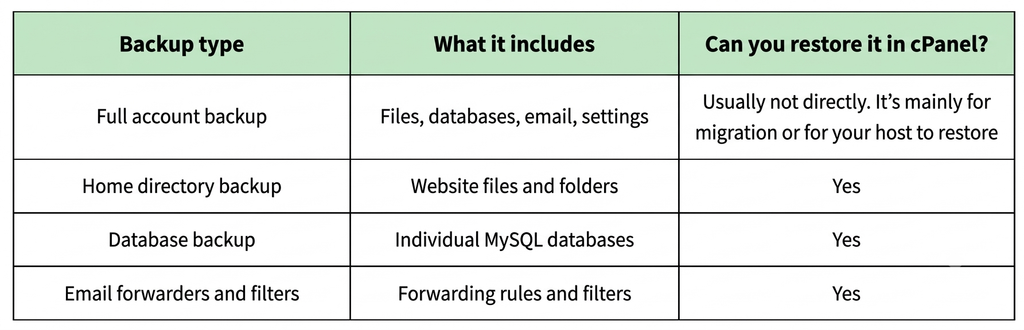
This is the point that catches many people out. Full account backups are usually restored by your hosting provider or an administrator, not through your own cPanel, though this can vary by host.
Before You Start
- Check your disk space. A backup is created on your account first, so low space can cause failures.
- Check your host’s backup policy. Find out whether automatic backups exist, how often they run and how long they’re kept.
- Plan where to store the copy. Keep at least one backup away from your hosting server.
How to Create a Full Backup in cPanel
Open Files > Backup, click Download a Full Account Backup, choose a destination and generate it.
- Log in to cPanel and open Backup under Files.
- Under Full Backup, click Download a Full Account Backup.
- Choose where to save it: your home directory, or a remote location via FTP or SCP.
- Enter an email address if you want a notification when it finishes.
- Click Generate Backup.
- When it’s ready, return to the page and download the file from the list.
Large sites take longer, so don’t close the page expecting an instant result. Some hosts disable this feature or restrict it, so check your plan if you don’t see the option.
How to Create Partial Backups
Use the download links under Partial Backups on the same Backup page.
- Home Directory: Click the link to download your site files as a compressed archive.
- MySQL Databases: Click each database name to download it as a file.
- Email Forwarders and Filters: Download them separately if you use forwarding rules.
For a WordPress site, the two you most need are the home directory and the database. Without both, you can’t rebuild the site.
How to Back Up with Backup Wizard
If your cPanel version includes it, Backup Wizard walks you through the process. Open Backup Wizard, choose Backup, then pick full or partial and follow the prompts. It does the same job as the Backup page, just with a guided layout.
How to Restore from a cPanel Backup
Restore partial backups yourself through Backup or Backup Wizard. For a full account backup, ask your hosting provider.
Restore website files
- Open Backup in cPanel and scroll to Restore a Home Directory Backup.
- Click Choose File and select your backup archive.
- Click Upload.
You can also extract the archive using File Manager and upload files individually if you only need certain ones.
Restore a database
- Open Backup and find Restore a MySQL Database Backup.
- Choose the database file and click Upload.
The database should usually exist already, with the same name and user, before you import into it. If it doesn’t, create it first under MySQL Databases. For large files, phpMyAdmin import may be an option, though upload limits can apply.
Restore email forwarders and filters
Use the matching upload box under the restore section on the Backup page.
Restore a full account backup
Contact your hosting provider’s support team and give them the backup file or tell them which backup you want to restore. They can restore it with the server tools. Ask whether restoring will overwrite your current data, since it can.
Restoring from Your Host’s Automatic Backups
Many providers keep their own backups, often accessible via JetBackup, Backup or similar tools in cPanel.
If yours does:
- Open the backup tool in cPanel.
- Choose the type of data: files, databases, email or full account.
- Select the date of the backup you want.
- Choose what to restore and confirm.
Tool names, retention periods and restore options differ between hosts, so check your provider’s documentation. Restoring will usually overwrite the current version, so consider downloading the current state first if you might need it.
How to Check That Your Restore Worked
- Open your homepage and several inner pages.
- Log in to your admin area.
- Test forms, search and checkout if you have them.
- Check images and links.
- Send and receive a test email.
- Clear your site cache and any CDN cache before testing.
How Often Should You Back Up?
Back up as often as your content changes. The more you’d hate to lose, the more often you should do it.
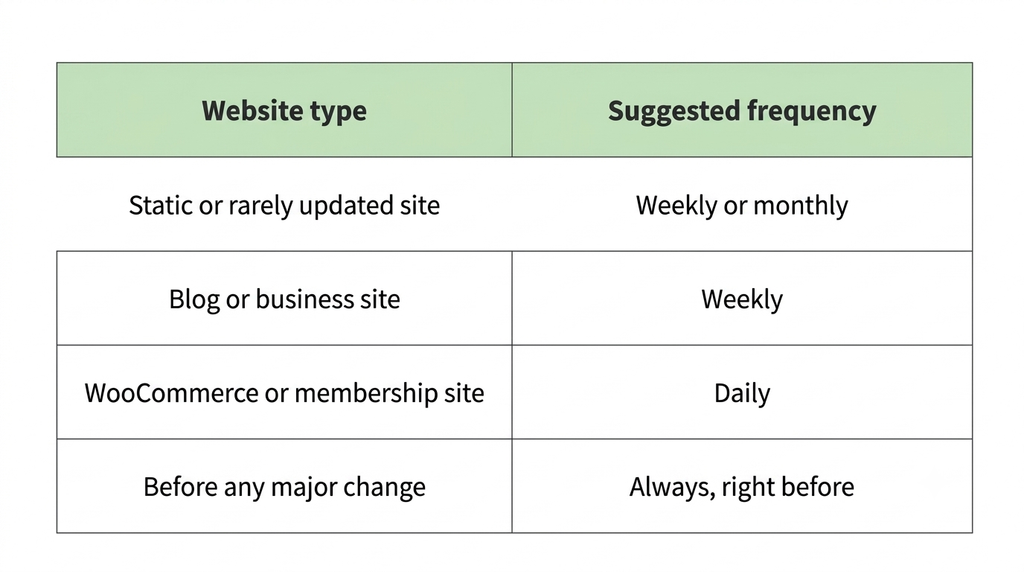
Also take a manual backup before updating plugins, changing themes, upgrading PHP or migrating.
Backup Best Practices
- Follow the 3-2-1 idea. Keep three copies, on two types of storage, with one stored off-site.
- Store backups away from your server. A backup on the same account can disappear with the account.
- Test your restores. A backup you’ve never restored is a guess, not a guarantee.
- Name files clearly. Include the date and site name.
- Protect backup files. They contain sensitive data, so don’t leave them in public folders.
- Delete old copies you no longer need to save space, but keep enough history to go back before a problem started.
Common cPanel Backup and Restore Problems
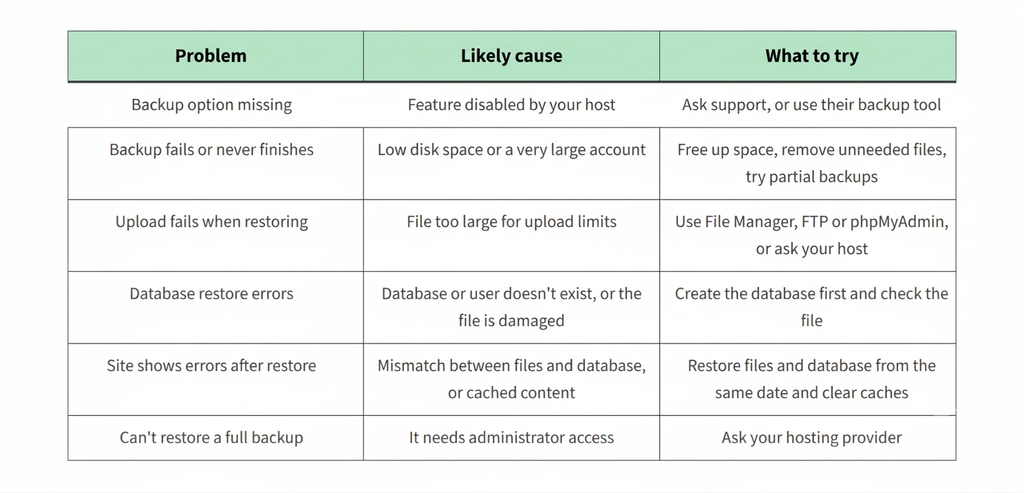
If you’re stuck, send your host’s support team the exact error message and the time it happened.
Backups and Security
Backups are a key part of recovery, but they are only useful if they’re clean. If your site was hacked, restoring a backup made after the infection may bring the problem back. Our guide on website hacking prevention explains how to detect and recover from attacks, and our article on how to secure your cPanel hosting account covers the settings that reduce risk in the first place.
Choosing a Host with Reliable Backups
Backup policies differ a lot between providers. Ask about frequency, retention, off-server storage, restore charges and whether you can restore on your own. Our 15-point checklist on what to check before buying web hosting covers these questions. If you plan to switch providers, our guide to migrating your website to a new host explains the full process.
If you want a plan with backup options, explore Cyberin’s cPanel hosting plans and confirm the current backup frequency, retention and restore terms before you buy.
Conclusion
A solid cPanel backup and restore routine doesn’t take much effort. Create regular backups of your files and databases, keep a copy off-site and test a restore now and then. Know which backups you can restore yourself and which need your host’s help. Do that, and a hack, a bad update or an accidental deletion becomes a small setback instead of a crisis.
Frequently Asked Questions
1. How do I back up my website in cPanel?
Open Backup under Files and click Download a Full Account Backup, or download partial backups for your home directory and databases. Save a copy off the server.
2. How do I restore a backup in cPanel?
Use the restore section on the Backup page to upload a home directory, database or email forwarder backup. Full account backups are usually restored by your hosting provider.
3. What is the difference between a full and a partial backup?
A full backup contains your whole account, including files, databases, email and settings. A partial backup covers only one part, such as your files, a database or email filters.
4. Can I restore a full cPanel backup myself?
Often not. Most hosts restrict full account restores to administrators, so you’ll usually need to contact support. This can vary by provider.
5. How often should I back up my cPanel account?
It depends on how often your site changes. Weekly suits many blogs, and daily suits stores. Always back up before major updates.
6. Where should I store my backups?
Keep at least one copy away from your hosting server, such as on your computer or in secure cloud storage. Don’t rely on a single location.
7. Does cPanel back up my website automatically?
cPanel itself provides the tools, but automatic backups depend on your hosting provider and plan. Check what yours includes, how often it runs and how long backups are kept.
