

If you have ever bought web hosting, you have probably seen the word cPanel somewhere in your welcome email or hosting dashboard. Most people ignore it at first because they are not sure what it does. But once you start managing a website, cPanel becomes the one tool you use every single day.
So what exactly is cPanel? Why is it so common? And how do you actually use it?
This guide answers all of that in simple language. Whether you are launching your first website or managing a few already, this article will help you understand cPanel properly.

What is cPanel?
cPanel is a Linux-based control panel. This gives you a graphical interface to manage your hosting account. Just push buttons and get things done. No command typing or config file editing. cPanel is the control panel for your hosting account. It has everything you need to run a website. Upload files, create email accounts, setup databases, install WordPress, manage domains & more – all from one place.
Here are some things you should know about cpanel. Only supports Linux servers Used by millions of sites worldwide. Included with most shared, reseller, vps and dedicated hosting providers. It is also available to a large number of users as it is offered in over 40 languages.
What cPanel is Used For
- cPanel makes it very easy to control just about every aspect of hosting account. If you have a website, chances are that you will be using cPanel for most of your day to day tasks.
- For example, you can upload and manage your site files right from File Manager. Email Accounts Create and manage professional email addresses for your domain. With cPanel, you are able to set up and control databases for your WordPress sites and other applications.
- You can use the tools to create SSL certificates, keep an eye on resource consumption and create backups. Other tasks include setting up FTP accounts, cron jobs and security settings. To summarize, cPanel is everything you require to keep a website running smoothly.
Key Features of cPanel
cPanel has a long list of features. These are the ones you use most:
- File Manager Upload, Edit, Delete & Manage Your Website Files Without FTP
- Email Management Set up email accounts, forwarders, autoresponders and spam filters.
- MySQL Databases Create and manage databases for Joomla, WordPress and other applications.
- Domain Management Add and manage addon, sub and parked domains and DNS records.
- SSL/TLS Manager – Install free or paid SSL certificates from LetsEncrypt
- Backup And Restore Backup and restore some or all of your data as needed.
- Cron Jobs: Schedule backups, updates, and so on.
- Softaculous – 1 Click Install WordPress, Joomla, Magento & 400+ Apps.
- Security Tools ModSecurity Hotlink Protection Two Factor Authentication IP Blocker
- Resource Monitoring Live monitoring of disk space, bandwidth, CPU and memory.
- PHP Manager – Switch PHP versions, enable/disable extensions
- MultiPHP Manager Select a PHP version to use for each domain.
- FTP Accounts Create and manage accounts for uploading and transferring files.
- Setting Up Email Deliverability Tools SPF, DKIM and DMARC
- IP Manager Manage IP addresses for your hosting account
How to Use cPanel: Step by Step
If you are new to cPanel, here is a short overview of the most common tasks.
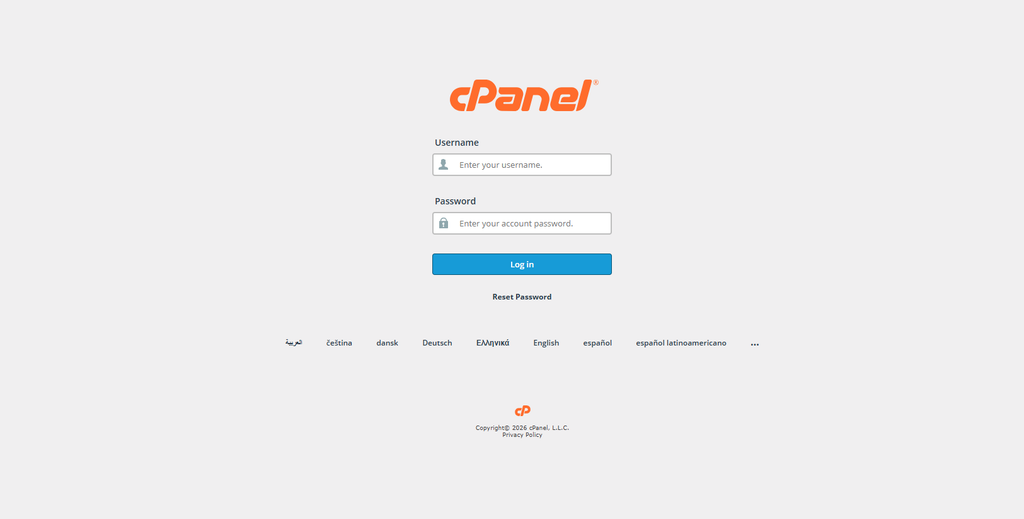
Step 1: Login to cPanel
In your browser open yourdomain.com/cpanel or yourdomain.com:2083. Login with the username and password that your hosting provider gave you.
Step 2: Understand the Dashboard
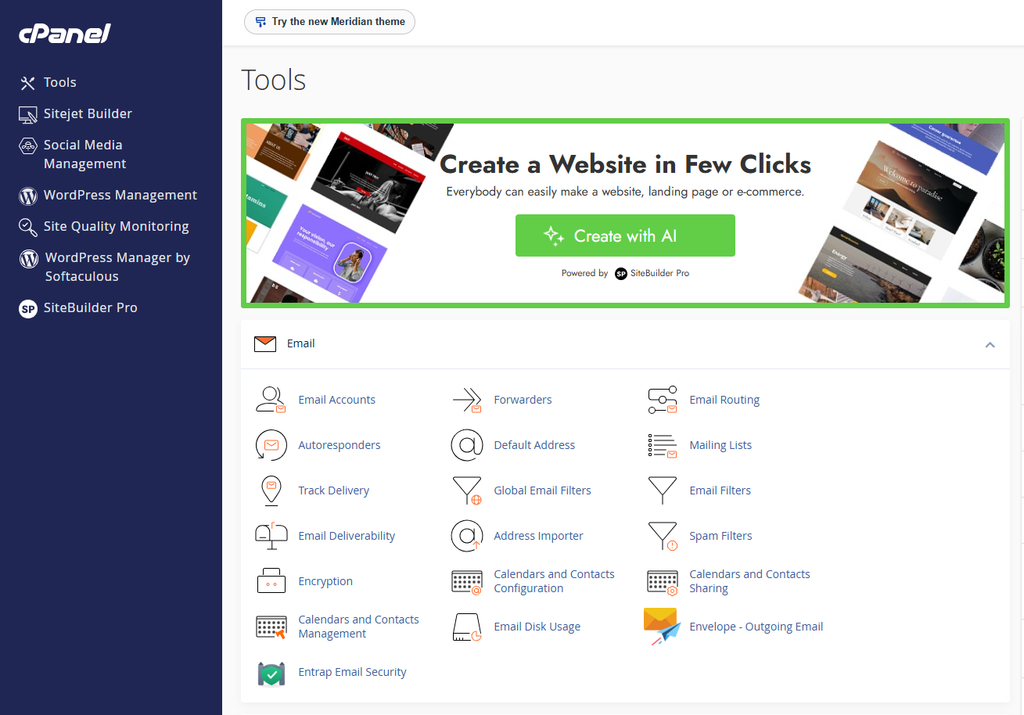
Look in the left sidebar for any tool. The main section has Files, Email, Databases, Domains and Security. Top bar has notifications, user settings and log out option.
Step 3: Create an Email Account
Choose Email Accounts, then click Create. Complete the email, name, password and quota fields. Then select Create Account.
Step 4: Install WordPress
Find WordPress under Softaculous Apps Installer. Click Install and enter your site details & admin login credentials. Click Install . It will only take a moment.
Step 5: Upload Website Files
Go to File Manager and open the public_html directory. Select your files and click Upload. Or you can simply drag and drop files to the folder.
Step 6: Create a Database
Click on MySQL Databases, and give the database a name. Create database user. GRANT ALL ON ALL TABLES IN DATABASE
Step 7: Install an SSL Certificate
Open SSL/TLS Status Select your domain name. Click AutoSSL Run Free SSL certificate in minutes.
Step 8: Take a Backup
Backup Wizard or Backup Choose Full Backup or Partial Backup Next, download the backup file on your computer.
Which Hosting Plans Include cPanel?
- Most Linux hosting types come with cPanel, but this depends on the provider and the plan. For cPanel Hosting Please cPanel is the most popular control panel to manage your websites, domains, files, databases and email accounts.
- cPanel Business Hosting cPanel and more hosting resources for websites that require more resources.
- Cloud VPS Hosting can optionally run cPanel control panel if the license and server configuration allow.
- Reseller Hosting includes cPanel for resellers with WHM (Web Host Manager) for managing multiple client accounts. cPanel and WHM Dedicated Servers are also ready for you to deploy.
- Most WordPress Hosting plans might use cPanel but the control panel will be decided by the hosting provider and the plan you choose.
- Note: cPanel is designed to work with Linux based servers and is not available for Windows hosting. Another popular Windows hosting option is Plesk.
cPanel vs Other Control Panels
When you select a control panel, it’s useful to know how cPanel compares with others. cPanel is known to be very user friendly and only runs on Linux. It has Softaculous as its one click installer, but it’s not free software. It has the most industry adoption and is best for beginners, bloggers and small businesses.
CyberPanel also only works on Linux and is easy to use. It has one-click installer and comes with a free edition as well. It is growing in popularity and is best for developers and VPS users.
Plesk can be used with Linux and Windows. It is easy to use and has one click installer but it is not free. It has great adoption. Best for agencies and Windows users.
DirectAdmin is a Linux only panel and has a medium learning curve. A one click installer is included but it is not free. It’s adopted in moderate level and is best suited for budget hosting providers.
Advantages of cPanel
- It is easy to use for a beginner.
- Download top apps with a single click.
- Includes built-in safety tools.
- It has automatic SSL installation.
- It has complete backup and restore features.
- Multiple domain & email account support
- Compatible with the majority of web hosts.
- Excellent documentation and community support.
- It comes with regular updates and security patches.
Limitations of cPanel
- cPanel, as with any tool, does have its limitations. It is not open source so the hosting providers pay a license fee, which is normally passed on to the customers. Only Linux servers can use this tool. Windows users cannot use this tool.
- It also uses a lot of resources on low-end servers. Some advanced configurations require access to WHM or root access, which you may not have on a shared host. And it doesn’t support Windows based hosting natively.
Common Use Cases of cPanel
There’s a lot you can do with cPanel. It is used to host personal blogs and portfolios. Businesses use it to run multiple websites from one account. It’s used by online stores to run WooCommerce.
It is also used to set up business email accounts, manage databases for web applications, and install and manage CMS platforms like WordPress, Joomla and Drupal. Resellers use it with WHM to manage client accounts. And developers use it for creating and managing staging environments.
Conclusion
cPanel is the most popular Linux hosting control panel. It’s been the default for years and still is for beginners, developers and hosting providers. It has everything you need to run a website, emails, databases, domains and security all in one interface.
If you’re just getting started with web hosting, one of the most useful things you can do is learn cPanel. It saves you time, eliminates confusion and puts you in control of your hosting account without requiring you to be a developer.
Frequently Asked Questions
1. Is cPanel free?
cPanel is a commercial product. Licenses are bought by hosting providers and are normally included in the price of the hosting plan.
2. How do I log in to cPanel?
Log in to cPanel at yourdomain.com/cpanel, or yourdomain.com:2083, or via your hosting dashboard.
3. Can I use cPanel on Windows hosting?
No, cPanel is only on Linux. Windows hosting comes with Plesk as standard.
4. What is the difference between cPanel and WHM?
Manage a hosting account with cPanel . WHM ( Web Host Manager ) – used to manage multiple cPanels . Popular with server admins and resellers.
5. Can I install cPanel on a VPS?
Yes, you can install cPanel on a VPS running a supported Linux distro.
6. Is cPanel secure?
Yes. cPanel has many security features including ModSecurity, two factor authentication, IP blocking, AutoSSL and more.
7. How many websites can I host on cPanel?
What are you going to do for hosting? Shared hosting 2. You can host from 1 to 10 sites. Unlimited sites on Reseller & VPS plans
8. What is Softaculous in cPanel?
Softaculous is a one click installer bundled with cPanel. WordPress, Joomla, Magento & 400+ other apps. Install them.
9. Can I migrate my website to cPanel?
Most hosting providers will either provide you with free migration tools or help you migrate your websites to a cPanel based hosting account.
10. Does cPanel support multiple PHP versions?
Yes, cPanel has MultiPHP manager where you can configure a different PHP version for different domains.