

A slow website can quickly frustrate visitors. If you want to Improve Website Speed, you need to look at factors such as hosting, images, caching, and website code. Faster pages create a better user experience and can help your website perform better in search.
Then, Improving Website Speed should be the first priority for the website owners. Loading faster improves user satisfaction and can help your site’s performance in search.
The good news is, you don’t always need massive technical changes. The smaller things such as image optimization, caching, hosting and website coding can add up to a lot.
25 Practical Ways to Accelerate Your Website Loading.
1. Choose Reliable Hosting
Your host server directly impacts the performance of your website. Select a provider with lots of CPU, RAM, fast storage and a good infrastructure. SSD or NVMe storage can also increase the speed of data access.
2. Use a CDN
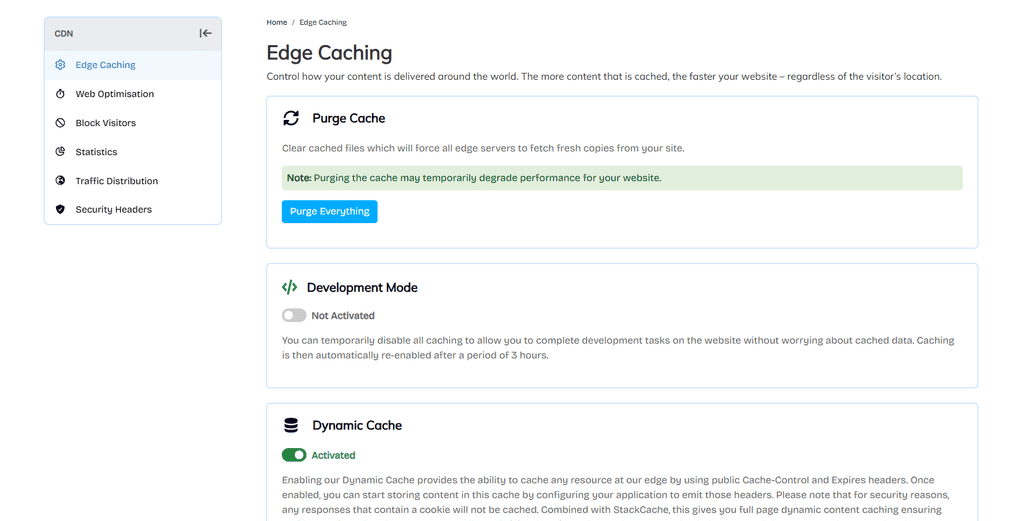
Content Delivery Network The network stores your static files on servers in many places. Visitors may be served content from the server that is closer to them so pages load faster.
3. Enable Page Caching
Caching saves pages in a ready-to-use format. This means the server doesn’t have to create the same page for each visitor. It can help to decrease the burden on the server and the response times.
4. Enable Browser Caching
Browser caching allows the browser of the visitor to store files like images, CSS and JavaScript. When they return they might not have to download these files again.
5. Compress Images
Large images are one of the most common culprits of slow pages. Resize and compress your images to the size they will be displayed at before uploading them.
6. Use WebP or AVIF
WebP and AVIF are image formats that are smaller than traditional JPEG and PNG images. Smaller images = less data to download for visitors.
7. Add Lazy Loading
Lazy loading delays the images which are out of the visible area. They load as visitors scroll near them. This can reduce the initial content loaded.
8. Remove Unnecessary Plugins
If you use WordPress, check your plugins regularly. Remove plugins that you no longer need. Some plugins can include other scripts and styles that can affect page performance.
9. Minify CSS
Minification of CSS means the process of removing unnecessary spaces, comments and characters from the files of style-sheets. This makes the file size smaller without changing how the website looks.
10. Minify JavaScript
JavaScript files can be minified to compress them. Browsers can process pages more efficiently by removing unnecessary code and reducing the size of files.
11. Remove Unused Code
Minification is not enough if your website loads code it never uses. Remove unnecessary CSS, JavaScript, libraries and website features whenever you can.
12. Optimize the Database
Dynamic sites like WordPress and eCommerce stores, use databases extensively. Regularly delete revisions that are unnecessary, spam comments, temporary data, and other unused records.
13. Reduce HTTP Requests
Every image, stylesheet, script, font, external resource adds work for the page to load. Eliminate unnecessary resources and prevent loading of the same files multiple times.
14. Enable GZIP or Brotli
Text-based files are compressed using GZIP and Brotli before sending to visitors. This reduces the amount of data sent between the server and browser.
15. Improve Server Response Time
A slow server can hold up the whole page. If your server is slow to respond then check your hosting resources, database queries, server configuration and caching.
16. Reduce Redirects
Redirects are handy when URLs change, but unnecessary redirects are just extra steps. Edit internal links to point at the final URL wherever possible.
17. Optimize Fonts
Too many fonts and font weights will increase the page size. Use only the font weights you need Consider using modern WOFF2 font files
18. Limit Third-Party Scripts
Analytics, chat widgets, ads, social tools and other external services can slow down a page’s load time. Remove services you don’t need and whenever you can, defer scripts that aren’t essential.
19. Use a Lightweight Theme
The content that visitors see first should load fast. Avoid placing huge images, videos, or unnecessary scripts at the top of the page.
20. Optimize Above-the-Fold Content
Visitors see the content first and it has to load fast. Don’t put large images, videos, or unnecessary scripts at the top of the page.
21. Keep Software Updated
Updating your CMS, plugins, themes, server software, libraries etc. Updates may consist of security fixes and performance improvements.
22. Optimize eCommerce Pages
Common on online stores are large product images, filters, reviews and third party tools. Compress product images, remove unnecessary scripts and optimize database queries.
23. Choose the Right Server Location
It allows you to bring your site closer to your core audience, and reduces network latency. If you have visitors from a lot of places a CDN can help serve static content closer to them.
24. Test Mobile Performance
A fast loading desktop site may still be slow on mobile. Test your pages on mobile connections, and optimize images, scripts and layouts accordingly.
25. Monitor Your Website Regularly
Monitor important metrics such as Core Web Vitals and use tools like Google PageSpeed Insights, GTmetrix or WebPageTest to monitor performance.
How to Improve Website Speed on WordPress
If you are using WordPress then you must optimize your hosting, choose a light-weight theme, compress your images, use caching and be careful with your plugins.
Don’t enable multiple optimization plugins that do the same thing. Test your website after every significant change. Change one thing at a time.
How to Improve Speed on eCommerce Websites
If you are looking at online stores, be sure to check product images, database performance, caching and third-party integrations. Shopping cart and checkout pages are personal pages and should not be cached unless configured properly.
Conclusion
You don’t need to do everything at once to speed up your website. Test your website first to find the big issues.
Use a CDN Compress large images enable caching remove unnecessary code and make sure your hosting has enough resources.
Always test your website after any changes, short and simple. A faster website is more than a better performance score. That’s going to make browsing faster and easier for real visitors.