

With cPanel Business Email, you can create your own professional email addresses on your own domain name, such as [email protected] or [email protected]. In case your website is on cPanel hosting India, you can create these accounts right from your hosting control panel without the need of a developer or a separate email software. Some of the features provided by cPanel for accessing emails are: Access emails through Webmail, link accounts on Outlook and mobile devices, set up email forwarding, set up automatic replies, manage mailbox storage, etc. This manual will assist you to understand the main features of cPanel business email, learn how to create and configure an account, manage daily email activities and troubleshoot common email problems.
What Is cPanel Business Email?
cPanel business email simply means email accounts created on your own domain through the Email section of cPanel. If your website is example.com, you can set up addresses such as:
[email protected]for general enquiries[email protected]for quotes and leads[email protected]for customer help[email protected]for billing questions[email protected]for recruitment
Because every address uses your domain, customers and staff see one consistent identity. From cPanel you can create as many accounts as your plan allows, set mailbox storage limits, forward mail, and control other email settings. The exact limits depend on your hosting provider and plan, so check those before you plan a big rollout.
For the wider picture on how domain email works, see our explainer on what email hosting is.
Key Features of cPanel Business Email
cPanel packs a handful of email tools into one place. Here’s what each one does and when you’d use it.
1. Custom Domain Email Accounts
This is the core feature. Under Email Accounts, you create addresses on your domain, and each gets its own login and storage limit. A typical small company might set up separate mailboxes for sales, support, accounts, and admin. You can change passwords and adjust quotas at any time.
2. Webmail Access
Webmail lets people check their email in a browser, with nothing to install. Depending on your hosting setup, it’s usually available at:
https://example.com/webmail
Log in with the full email address and password, and you’re in the inbox. It’s handy when staff work from different computers, or when someone needs to check mail quickly from a device that isn’t theirs.
3. Email Forwarders
Forwarders forward mail from one address to another automatically. For example all mail addressed to [email protected] could be copied to the existing inbox of a team member.
In these situations forwarders are useful:
- Several people need to view requests for a single address
- You are forwarding from an old email address
- Somebody wants messages in another mailbox.
4. Autoresponders
An auto responder sends a prearranged response when a certain account receives an email. Something a support team might use is:
“We are happy to assist you with your request. Thanks for reaching out. We will get back to you soon.
They’re useful for confirming receipt of a message, announcing holidays, sharing anticipated response times and acknowledging enquiries.
5. Email Filters
Filters apply rules to incoming mail automatically. You can move messages from a certain sender into a folder, redirect mail that matches specific conditions, discard unwanted messages, or sort email by subject or content. Set up well, they take a lot of manual inbox sorting off your plate.
6. Email Deliverability Tools
The Email Deliverability tool checks the DNS records behind your email, including SPF and DKIM, and suggests fixes when something is wrong. Correct authentication helps receiving servers confirm that your messages really came from you. DMARC can be added through your domain’s DNS settings to tell receiving servers what to do with messages that fail those checks.
If you want the full setup, read our guide to How to Configure SPF, DKIM and DMARC in cPanel
7. Email Storage Management
Every mailbox uses space for messages, attachments, and other data. Email Disk Usage shows which mailboxes and folders are eating storage, so you can find large messages, clear out what you don’t need, and keep things tidy. How much space you get depends on your hosting plan.
How to Create a Business Email Account in cPanel
Before you start, make sure your domain is added to your hosting account and its email service is working.
Step 1: Log in to cPanel. Use the login URL and credentials from your hosting provider to reach the dashboard.
Step 2: Open Email Accounts. Find the Email section and click Email Accounts. You’ll see any existing addresses here.
Step 3: Create the account. Click Create, then fill in:
- Domain: choose your business domain if you have more than one
- Username: the part before the @ symbol, such as
infoorsupport - Password: a strong, unique one
- Storage space: a mailbox quota that suits your needs, if the option is shown
Click Create to finish.
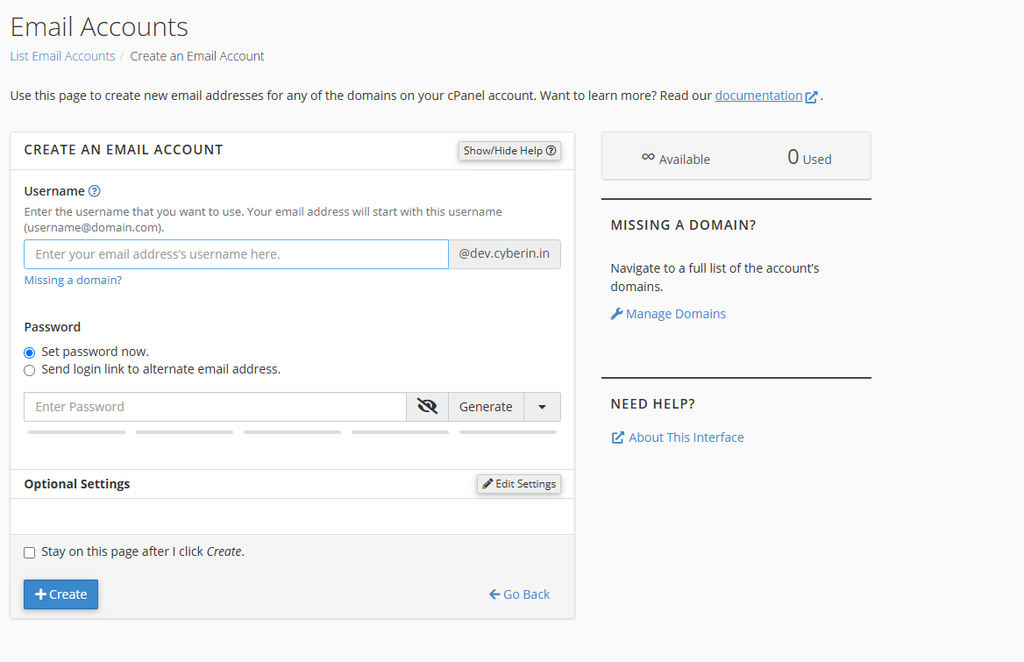
Step 4: Check that it worked. The new address should appear in the Email Accounts list. From there you can change its password, adjust its quota, review connection settings, or open Webmail.
How to Access and Use Your Business Email
Once the account exists, you can read mail in two ways: through Webmail, or inside an email app.
Use Webmail
- Open
https://example.com/webmailin your browser - Enter your full email address
- Enter the account password
- Click Log In
- Choose the Webmail interface to open your inbox
From there you can read, write, reply, forward, and organise messages.
Connect Outlook, Apple Mail, or Thunderbird
Prefer a desktop or phone app? cPanel gives you the exact settings, so you don’t have to guess:
- Log in to cPanel
- Open Email Accounts
- Find the address you want to set up
- Click Connect Devices
- Copy the settings into your email app
If you need to enter things manually, these are the typical secure settings:
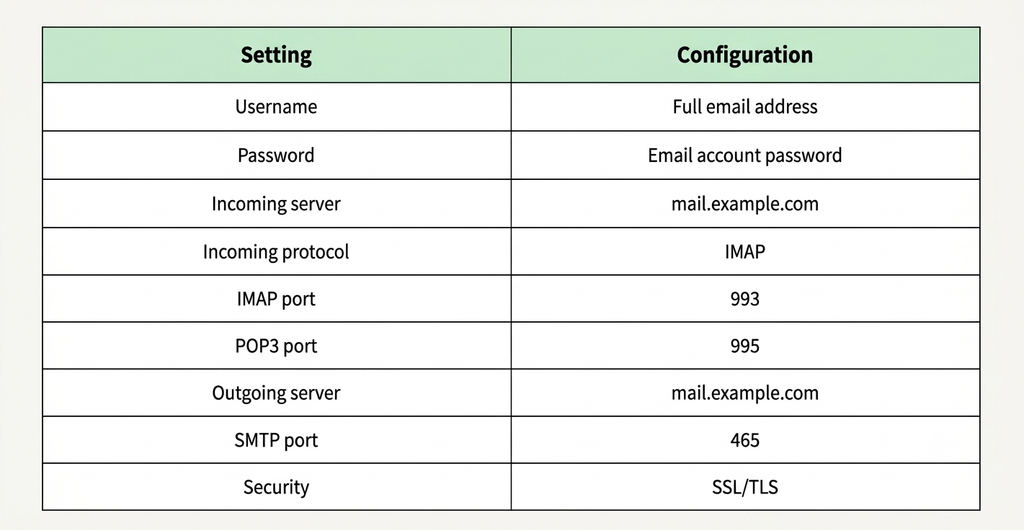
Note: These are standard cPanel values. Always confirm the real hostname and ports in Connect Devices, because they can differ depending on your server’s SSL certificate and configuration.
One practical tip: choose IMAP if you’ll read the same mailbox on more than one device. It keeps everything in sync with the server.
How to Manage Business Email Accounts
Creating accounts is the easy part. A few routine tasks keep them secure and useful over time.
Change a Password
When a team member leaves, or you suspect a password has leaked, update it right away:
- Open Email Accounts
- Find the address and click Manage
- Enter a new password
- Save
Give every mailbox its own password, and avoid sharing logins between employees.
Adjust Mailbox Storage
If a mailbox is running out of room:
- Open Email Accounts
- Click Manage next to the address
- Find the Storage or Quota setting
- Change the limit and save
If your plan caps total storage, you may need to delete old mail or upgrade your resources instead.
Set Up Forwarding
- Open Forwarders in the Email section
- Click Add Forwarder
- Enter the address you want to forward from, and choose the domain
- Enter the destination address
- Click Add Forwarder
Many setups also let you forward to more than one recipient.
Add an Automatic Reply
- Open Autoresponders
- Click Add Autoresponder
- Select the email address
- Set how often the reply should be sent
- Write the subject and message
- Set start and end times if you need them
- Save
Send a test message from another address to make sure it behaves as expected.
Deal With Unwanted Mail
Use Email Filters to sort or discard mail automatically. Keep your rules simple and review them now and then, so an overly broad filter doesn’t quietly redirect or delete something important.
How to Keep Your Business Email Secure
Business mailboxes hold customer details, invoices, and internal conversations, so protecting them belongs in your regular routine. For account-level protection, our guide to securing your cPanel hosting account is a good companion read.
1. Use Strong, Unique Passwords
Avoid over-used words, your company title or anything lifted from other places. If you suspect someone else has used your password then change it immediately.
2. Set Up SPF, DKIM, and DMARC
These three DNS records help work together to protect your domain from spoofing:
- SPF identifies the mail servers that are allowed to send email for your domain
- DKIM—adds a digital signature so receiving servers can check a message was not modified
- DMARC tells the receiving servers what to do with messages that fail SPF or DKIM tests
Configure them to match how you actually send mail. Make sure you save it, because wrong records can block legitimate messages. To edit them, see our cPanel DNS management guide.
3. Always Use SSL/TLS
Secure settings encrypt the connection between your email app and the mail server, protecting logins and message content in transit.
4. Remove Accounts You No Longer Need
Watch your mailboxes closely, especially when people are gone. Before you delete an account, back up anything important.
5. Watch Storage and Activity
Monitor mailbox usage and investigate anything unusual—such as unexpected password changes, unknown forwarding rules, or login activity you don’t recognize.
Common cPanel Email Problems and How to Fix Them
Even with a clean setup, things occasionally go wrong. Here’s where to look first:
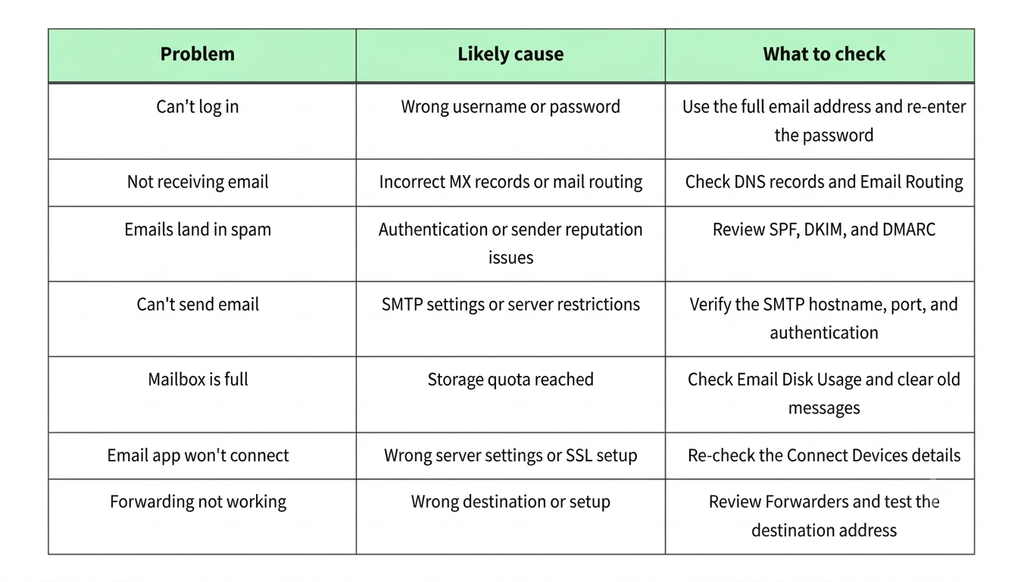
Spam placement is the most common headache. Our guide on stopping emails from going to spam covers it in depth. If a problem persists, your hosting provider can check server-side mail logs and delivery restrictions.
Conclusion
cPanel business email gives you one central place to create and manage domain-based addresses. Webmail, forwarders, autoresponders, filters, and storage tools keep daily communication organised without extra software.
To get the best results: create separate addresses for different teams, use strong passwords, set up SPF, DKIM, and DMARC properly, and check mailbox storage regularly. Before you rely on it for important communication, also confirm your plan’s mailbox limits, sending restrictions, storage allocation, and email support policy.
Need a host where cPanel email comes ready to use? Explore Cyberin’s cPanel hosting plans, compare options on the pricing page, or browse step-by-step tutorials in the Cyberin Help Center.
Frequently Asked Questions
1. What is cPanel business email?
It is a business email account on your domain, created through cPanel. A business with example.com can set up addresses such as [email protected], [email protected], and [email protected].
2. How do I create a business email account in cPanel?
Sign in to cPanel and go to Email Accounts. Click Create. Select your domain. Please create a username and password. Set a storage limit. Click on Create.
3. Can I use cPanel business email in Outlook?
Yes. Open Connect Devices next to the account in cPanel to get the server settings, then enter your email address, password and incoming and outgoing server details into Outlook.
4. What’s the difference between IMAP and POP3?
IMAP keeps your mail in sync with the server so you can read the same mailbox on multiple devices. POP3 is usually a download to one app and can be set to delete messages from the server. For most businesses, IMAP is the better choice.
5. How many business email accounts can I create?
It is contingent upon your hosting plan and the limitations that your provider places on it. Some plans allow for many accounts, some limit the number. Review your plan details.
6. Is cPanel business email secure?
cPanel includes tools for securing email, such as password management, SSL/TLS connections and SPF and DKIM setup. DMARC is available through DNS. For real security your config matters . Your password habits matter . Your host ‘s server protection matters .
7. Can I forward business email to Gmail?
Yes. cPanel Forwarders allows you to send emails from your business address to a Gmail address, so that enquiries end up in another inbox.
