

cPanel File Manager is a built-in tool in your hosting dashboard that lets you upload, edit, move, rename, compress and delete website files straight from your browser, with no FTP software needed. If you’re on cPanel hosting in India, you’ll find it by logging in to cPanel and opening the Files section.
What Is cPanel File Manager?
cPanel File Manager is a tool that enables you to manage files and folders on your hosting server via a web browser. You don’t need to connect with a separate FTP client, you can open your site’s directory right from the cPanel dashboard.
You will be able to:
- Upload website files, images, documents, scripts
- Download files to your PC
- Create, copy, move and rename directories
- Edit HTML, CSS, PHP, and other text files
- Extract and compress zip files
- Modify file and folder permissions
- Remove files and folders you no longer need
Imagine it like the file explorer on your computer but instead it is looking at your web server. It is good for routine maintenance, quick repairs and daily content updates.
How Do I Open cPanel File Manager?
It takes about ten seconds:
- Log in to your cPanel hosting account.
- Find the Files section on the dashboard.
- Click File Manager.
- Open the folder that holds the website you want to work on.
You’ll see your account’s folders and files right away.
If you run several websites from one hosting account, each one may have its own document root folder. Take a moment to check which folder belongs to which site. Our guide to addon domains and subdomains in cPanel explains how that works.
Tip: Before you edit or delete anything, double-check you’re in the right website folder. It’s surprisingly easy to change the wrong site when several share one account, and no judgment, it happens to everyone.
What Are the Main Folders in File Manager?
Before you start moving things around, it helps to know what each folder does.
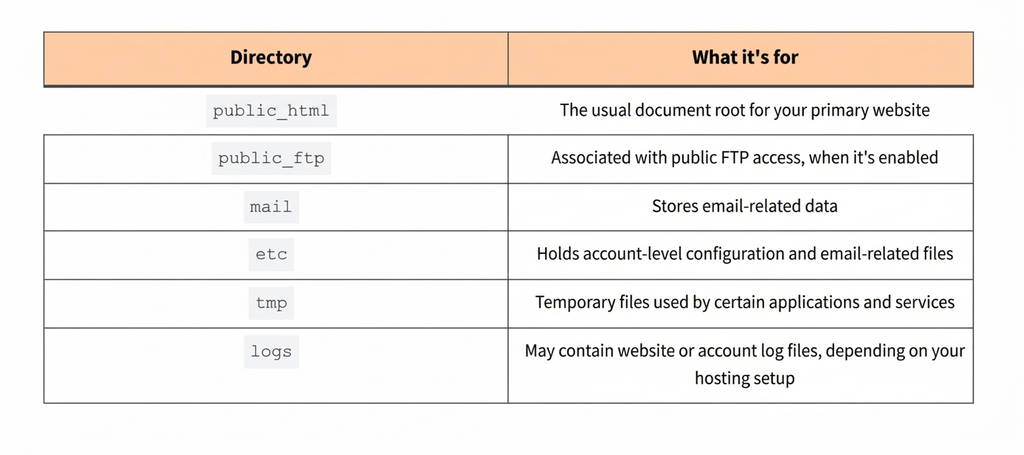
What Is the public_html Folder?
public_html is generally the document root for the primary domain on a cPanel account. Files placed here can be served publicly through your website, depending on their permissions and your server configuration. In plain terms: if you want something to show up on your website, it usually goes here.
A typical WordPress site looks like this inside it:
public_html/
│
├── index.php
├── .htaccess
├── wp-config.php
├── wp-content/
│   ├── themes/
│   ├── plugins/
│   └── uploads/
├── wp-admin/
└── wp-includes/
That’s just one example, since other applications can use a different structure. And if you have an addon domain or an extra website, check its assigned document root in cPanel before you upload anything.
How Do I Upload Files Using cPanel File Manager?
Uploading is what most people use File Manager for. It works for website backups, images, documents, scripts and more.
- Open File Manager.
- Go to the folder where the files should live, such as
public_html. - Click Upload in the toolbar.
- Choose the files from your computer.
- Wait for the upload to finish.
- Go back to File Manager and refresh the folder to confirm your files are there.
Uploading a lot of files? Zip them first. One archive is far easier to upload than hundreds of small files, and far less likely to time out halfway.
Important: If you upload an index.html or index.php file into a folder that already has one, check for a clash with your existing homepage file. Replacing the wrong file can change what visitors see when they open your site.
How Do I Download Files from File Manager?
You can pull files from your hosting account down to your computer, which is handy for manual backups or for editing something locally.
- Open File Manager.
- Go to the folder with the file you need.
- Select the file.
- Click Download in the toolbar.
- Pick a location on your computer if you’re asked.
To download several files at once, compress them into a ZIP archive first and download that.
How Do I Edit Website Files in File Manager?
File Manager has built-in editing for text-based files, so you can change HTML, CSS, PHP, JavaScript and configuration files without leaving your browser.
- Go to the folder with the file.
- Right-click the file, or select it.
- Choose Edit or HTML Editor, depending on the file and the options you see.
- Make your changes.
- Save the file.
For anything with programming code in it, the Code Editor is the better pick. It shows code in a more readable layout and may include syntax highlighting. You can use it to update page content, styling, PHP code, JavaScript functions and configuration files.
How Do I Edit the .htaccess File?
The .htaccess file is commonly used on Apache-based hosting to control redirects, URL rewriting, access restrictions and other server behaviour.
To edit it:
- Open
public_html. - If you can’t see
.htaccess, turn on Show Hidden Files (dotfiles) in File Manager settings. - Find the
.htaccessfile. - Make a backup copy first. Seriously, do this one.
- Open it with the Edit option.
- Make your change and save.
Important: A wrong .htaccess rule can cause redirect loops, 403 errors or 500 Internal Server Errors. Only change rules you understand, and keep the backup so you can put the original back in seconds.
How Do I Create a New File or Folder?
You can create both directly inside your website directory.
To create a new file:
- Open the folder where you want it.
- Click + File in the toolbar.
- Type the filename, including its extension (for example
contact.htmlorcustom.css). - Confirm the location.
- Click Create New File.
To create a new folder:
- Open the folder where you want it.
- Click + Folder.
- Type a folder name (an
imagesfolder is a good way to keep graphics tidy). - Confirm the location.
- Click Create New Folder.
How Do I Copy, Move and Rename Files?
You can reorganise files without downloading them first.
Copying: select the file or folder, click Copy, enter the destination and confirm. You’ll end up with a second version while the original stays put.
Moving: select the file or folder, click Move, enter the destination and confirm. Moving changes the file’s location, so if your website depends on its old path, moving it may break links or functionality.
Renaming: select the file, click Rename, type the new name and confirm. Be careful with file extensions. Renaming a file from .php to .txt, for example, changes how the server handles it.
How Do I Extract and Compress ZIP Files?
Archive tools are a lifesaver when you’re uploading a website backup or downloading lots of files together. If you’re moving a whole site, our guide to migrating a website without downtime shows where this fits in the bigger picture.
To extract a ZIP archive:
- Upload the ZIP file to the folder you need.
- Select the archive.
- Click Extract.
- Choose the destination folder.
- Confirm the extraction.
- Check that the extracted files ended up in the right place.
If you upload a WordPress ZIP, for instance, make sure the files land in your actual website directory and not inside an unnecessary extra folder. It’s a classic mistake, and it makes your site look like it vanished.
To compress files into a ZIP archive:
- Select the files or folders.
- Click Compress.
- Choose ZIP Archive as the compression type.
- Enter a name for the archive.
- Choose where to save it.
- Start the compression.
You can then download the ZIP or keep it on your account as a quick backup.
How Do I Change File Permissions in cPanel?
Permissions decide who (and what) can read, write or run a file or folder. In File Manager, they’re usually shown as three-digit numbers.
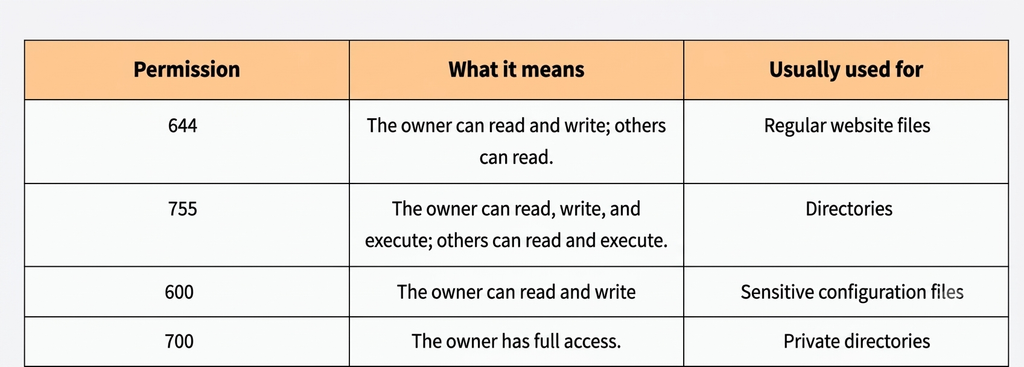
To change permissions:
- Open File Manager.
- Find the file or folder.
- Right-click it and choose Change Permissions.
- Adjust the read, write and execute boxes.
- Click Change Permissions to save.
Security tip: Avoid setting anything to 777 unless a specific application requirement and your hosting setup genuinely call for it. That setting can give far broader access than necessary. For the bigger picture on keeping things safe, see how to secure your cPanel hosting account.
How Do I Delete Files and Folders Safely?
- Find the file or folder.
- Select it.
- Click Delete.
- Read the confirmation message.
- Confirm.
Depending on your File Manager configuration, deleted items may go to a Trash folder instead of disappearing immediately. Even so, think twice. Check whether your website, application or email setup needs the file. Deleting WordPress core files, plugin folders or configuration files without knowing what they do can take your site offline.
If you’re ever unsure, a recent cPanel backup is your safety net.
What Are the Common File Manager Problems?
Most hiccups come down to permissions, upload limits or the wrong folder path.
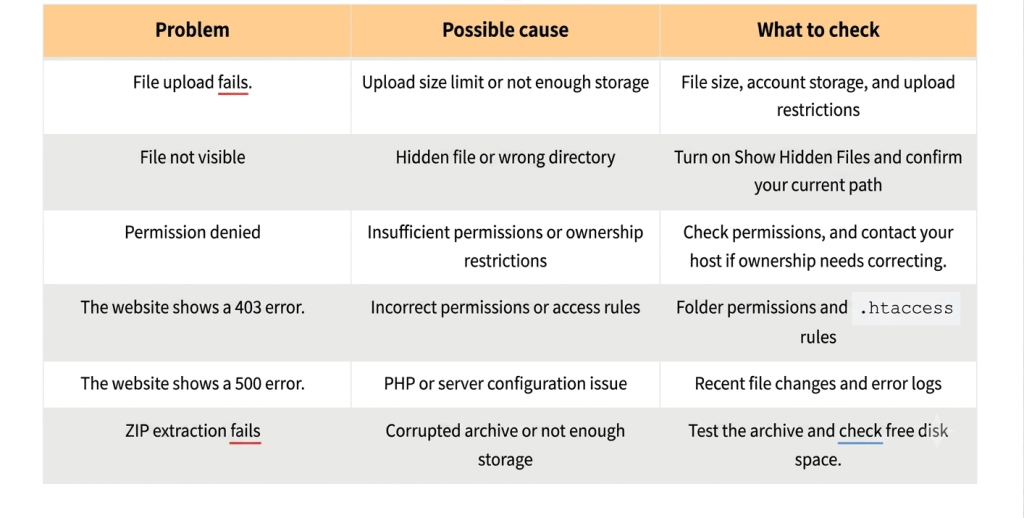
If a problem keeps coming back, check the server error logs or reach out to your hosting provider.
Should I Use File Manager or FTP?
Both let you manage website files, but they suit different workflows.
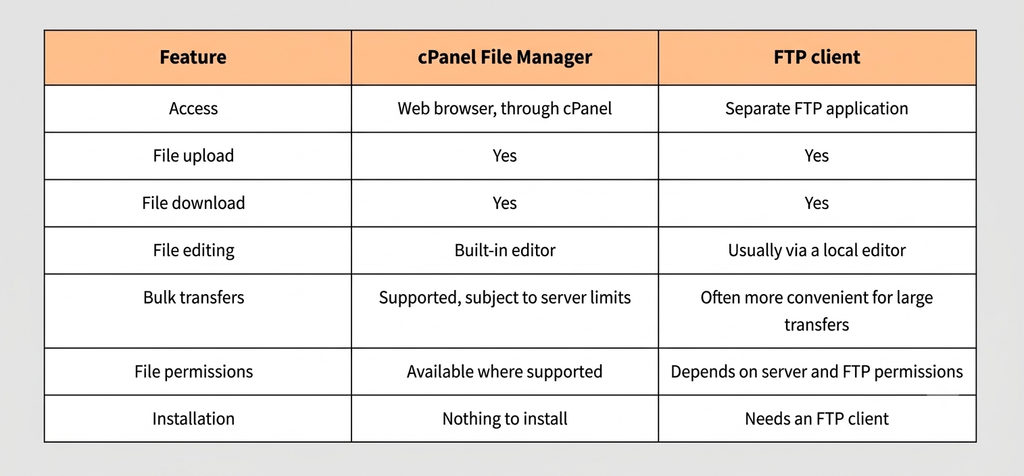
A simple rule of thumb: use File Manager for occasional uploads, quick edits, ZIP extraction and routine maintenance. An FTP client tends to be more comfortable when you’re moving lots of files, syncing folders or working with local copies of your site every day. For a closer comparison, read our guide to choosing between File Manager and FTP.
Habits That Keep Your Website Files Safe
A few small habits prevent most accidental disasters:
- Back up before you edit. Keep a copy of important files before changing configuration or code.
- Check the document root. Make sure you’re in the right website folder.
- Don’t delete what you don’t understand. Find out what a file does first.
- Use sensible permissions. Follow your application’s recommended settings rather than opening everything up.
- Stay organised. Use clearly named folders for images, documents, backups and other assets.
- Clear out old archives. Delete outdated ZIP files and temporary uploads once you’re done with them.
- Protect sensitive files. Don’t leave private backups, credentials or confidential documents in publicly accessible folders.
Conclusion
cPanel File Manager makes everyday file management possible without installing anything extra. From uploading files and editing configuration to handling permissions and extracting archives, it covers the essentials of keeping a website running, right from your browser.
Know your folder structure, back up before you change anything important, and keep permissions sensible, and you’ll dodge most of the mistakes that trip people up. To explore the rest of your dashboard, read our complete cPanel management guide for practical help with email, files, databases and security.
Frequently Asked Questions
What is cPanel File Manager?
With your hosting account you get cPanel’s File Manager, which is a tool to upload, download, edit, copy, move, rename, compress, extract and delete website files all through your web browser.
How do I open cPanel File Manager?
Log in to cPanel and click on File Manager under the Files Manager.
Where are website files stored in cPanel?
Your main domain files are typically stored in the public_html folder. cPanel may have other document roots set up for other domains.
Can I upload a complete website using cPanel File Manager?
Yes. Upload your website files (usually as a ZIP archive) to the correct document root and extract there. Make sure you put the homepage and application files in the correct folder.
Can I edit PHP files in cPanel File Manager?
Yes with the built in Edit or Code Editor option. First, make a backup, because bad PHP code can break your website.
Why can’t I see the .htaccess file in File Manager?
It’s a hidden file because its name starts with a dot. Open File Manager settings and turn on Show Hidden Files (dotfiles).
What file permissions should I use?
Regular files are usually 644 and directories are usually 755. Always use the setting recommended by your app. And don’t use 777 unless you really need to.
Is cPanel File Manager better than FTP?
No best answer. FTP clients are more practical for frequent or bulk transfers and File Manager is good for quick browser based tasks .
Can I restore deleted files in cPanel File Manager?
If you moved the files to the Trash and you have the Trash feature enabled, you might be able to recover them. Most of the time, they need to be backed up before they can be recovered.
