

SSL Certificate Installation encrypts the data that is passed between your website and the visitors to your website. It uses https encryption, so you can browse more safely. SSL is essential for businesses to gain customer trust, secure transactions and improve the website’s credibility.
Installing an SSL Certificate may sound technical at the first place. But it is a simple process once you have the right certificate, you know what hosting environment you have and how to configure it. In this article we’ll cover what SSL certificates are, how they work, how to install them, and how to fix the most common SSL problems.
What Is an SSL Certificate?
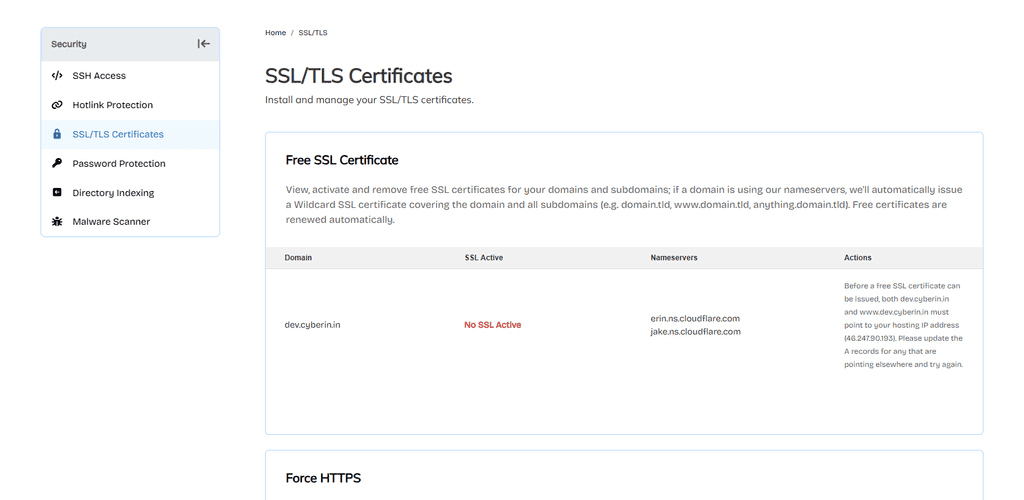
SSL Certificates encrypt the data shared between a visitor’s browser and your website’s server. With SSL properly installed, your website will be using HTTPS rather than HTTP.
Modern browsers also show security indicators for HTTPS websites. This provides the visitors’ confidence in the security of their connection.
Certificate Authorities (CAs) issue SSL certificates and verify domain ownership and, depending on the certificate type, some additional business information.
Types of SSL Certificates
Select the appropriate certificate for your website and security requirements.
Domain Validated (DV) SSL:
DV certificates prove that you own the domain name. These are great for personal sites, blogs and lots of small business sites.
Organization Validated (OV) SSL:
OV certificates also provide additional organization validation that can be of value to organizations seeking a higher level of identity assurance.
Extended Validation (EV) SSL:
EV certificates need to be validated more stringently They are often recommended for organizations that require a higher level of assurance of identity.
Wildcard SSL:
A wildcard certificate can cover a main domain name and any subdomains under it. For example, a certificate may be valid for example.com and also for blog.example.com.
Free vs Premium SSL Certificates
Free SSL certificates provide encryption without the expense of a paid certificate. They do a good job for many websites, and can offer the same basic HTTPS encryption.
Premium certificates may have additional validation, warranty coverage, support or management features.
For most standard websites, a free SSL certificate will be sufficient in most cases. Larger businesses should match the features of certificates with their security and operational needs.
SSL Certificate Installation on cPanel
If you have a cPanel hosting account, you can usually install SSL thru the control panel.
Step 1: Obtain an SSL Certificate
Obtain an SSL certificate from your hosting provider or Certificate Authority. Some hosting providers will automatically issue and install free SSL certificates for you.
Step 2: Open SSL/TLS Management
Log in to cPanel and locate SSL/TLS or SSL/TLS Status depending on your hosting setup.
Step 3: Install the Certificate
If you have certificate files please enter the Certificate ,Private Key and CA Bundle into the appropriate fields Then, install the certificate for the correct domain.
If you have automatic SSL from your hosting provider then they are probably able to issue and install your SSL certificate for you, without you having to enter these details manually.
Step 4: Test HTTPS
Go to your website https://yourdomain.com Make sure browser does not warn for certs
SSL Installation on Plesk
SSL certificate management tools are available in Plesk’s control panel.
Click Websites & Domains, and then select the domain you need. Click SSL/TLS Certificates, and select the certificate option that works.
If you have a free certificate available thru your hosting environment, Plesk can automatically issue and install it for you. Upload your certificate and private key you get from your Certificate Authority.
Test your site over HTTPS once it’s installed.
SSL Certificate Installation on a Linux VPS
Depending on the web server you use, the installation of SSL on a Linux VPS will vary. Apache and Nginx have different configuration files and commands.
Your Apache server’s virtual host configuration will point to the certificate and private key files by default . You also need to configure the certificate paths inside the server block for nginx.
Check the web server configuration and restart the service after changing the configuration.
For example, Apache users can check the configuration with:
apachectl configtestNginx users:
nginx -tIf the configuration test succeeds, restart the web server and verify that HTTPS is functioning correctly.
Redirect HTTP to HTTPS
But installing SSL is only half the battle. You will also need to redirect your site’s traffic from http to https .
A good redirect will automatically redirect visitors who use an old URL in HTTP to the new, secure HTTPS version.
Before you enable the redirects make sure that the SSL certificate is working. Bad redirect rules can result in redirect loops or make parts of the website unreachable.
Fix Mixed Content Warnings
Mixed Content: When the page loads over a secure HTTPS connection, but resources load over an insecure HTTP connection. These resources could be images, scripts, stylesheets or videos.
Among the best known examples are :
https://example.com
http://example.com/image.jpg
Change insecure resource URLs to HTTPS wherever possible. Also check your website database, theme files, plugins, and custom scripts for old HTTP URLs.
Common SSL Errors
Several problems can appear after SSL installation.
Certificate expired:
Renew certificate before it expires.
Certificate name mismatch:
The domain visitors are visiting might not be the domain of the certificate. Please make sure the correct domain or sub-domain is included.
Incomplete certificate chain:
The server might be missing the intermediate CA certificate. The problem can be solved by installing the correct CA bundle.
Mixed content:
Update HTTP resources to HTTPS.
Redirect loop:
Check your host configuration and your HTTPS redirect rules.
Browser trust warning:
Check certificate domain coverage, expiration date, validity and certificate chain.
SSL Renewal and Maintenance
SSL certificates must be renewed before they expire. Many hosting platforms will allow you to automate renewal, so you’re less likely to be caught out by unexpected downtime.
Track the status of your certificate and receive renewal alerts. For businesses with multiple domains, a list of certificates, expiration dates and responsible administrators should be kept.
If your website uses HTTPS to handle payment processing, customer accounts or business operations, then automatic renewal is a good idea.
SEO Benefits of HTTPS
Best practice for websites today also includes While search engines do take into account HTTPS as a ranking factor, it’s just one of many.
Most importantly, HTTPS can improve user trust and prevent browsers from showing security warnings. Thus, a secure connection can improve user experience and overall credibility of the website.
SSL Certificate Best Practices
Follow these practices to maintain secure HTTPS connections:
- Keep SSL certificates renewed and valid.
- Redirect HTTP traffic to HTTPS.
- Remove mixed content from website pages.
- Use strong and secure server configurations.
- Monitor certificate expiration dates.
- Test HTTPS after server or DNS changes.
- Keep your web server and software updated.
- Use wildcard certificates only when appropriate.
- Regularly check certificate coverage for subdomains.
Conclusion
SSL Certificate Installation is important for websites that collect information from visitors, customer accounts, forms or online transactions. Whether you’re on cPanel, Plesk or a Linux VPS, the basic steps are the same: get the right certificate, install it correctly, set up HTTPS, and test the connection.
Regular renewals , HTTPS redirects , mixed content checks , and certificate monitoring will help ensure that your website is secure and accessible. SSL set up correctly provides encrypted connections, builds customer trust and is good for modern SEO.