

Log into cPanel for the first time and it can feel like walking into a cockpit. Dozens of icons, unfamiliar names, and no obvious starting point. The good news is that most routine tasks in cPanel involve just a handful of tools.
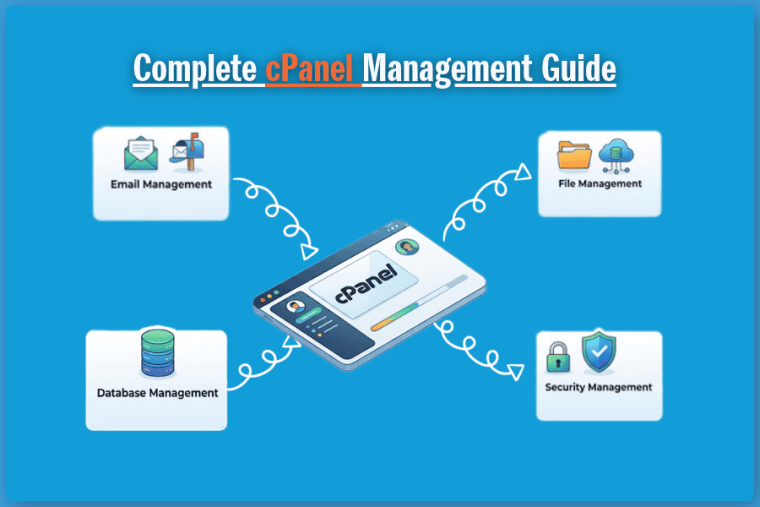
This cPanel guide covers the four areas that matter most day to day: email, files, databases, and security. Each section explains what the tool does, how to use it, and the mistakes worth avoiding. If you want the bigger picture first, our primer on what cPanel is is a good warm-up.
Quick Orientation: Finding Your Way Around
Your cPanel opens at yourdomain.com/cpanel (or the login link in your hosting welcome email). Everything is grouped into sections: Files, Databases, Domains, Email, Security, Software, and a few more depending on your host.
Use the search box at the top. Typing “backup” or “email” is faster than hunting through sections, and it’s what experienced users do anyway.
Managing Email in cPanel
A domain-based address like [email protected] looks more credible than a free Gmail address, and cPanel makes it quick to set up.
Create an Email Account
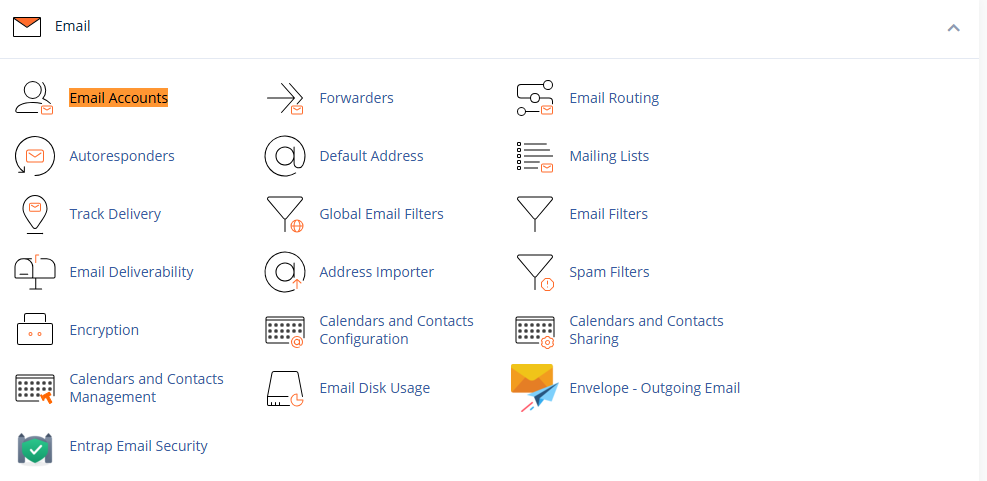
- Open Email → Email Accounts
- Click Create
- Choose your domain and type the username (the part before the @)
- Set a strong password
- Set a storage quota, or choose unlimited if your plan allows it
- Click Create
Read Your Mail
You have two options. Webmail (Roundcube on most setups) works in any browser, with nothing to install: use the “Check Email” button next to the account. Or connect a mail client like Outlook, Apple Mail, or your phone.
For the client route, click Connect Devices beside the account. cPanel shows the exact settings for your server, so you don’t have to guess. As a general reference, secure connections typically use IMAP on port 993 and SMTP on port 465, with mail.yourdomain.com as the server. Always trust the values cPanel gives you over any generic list.
Forwarders, Autoresponders, and Filters
These three small tools save a lot of time:
- Forwarders send mail from one address to another (e.g.,
sales@lands in your personal inbox) - Autoresponders reply automatically, which is handy for holidays or “we got your message” confirmations
- Email Filters sort or discard incoming mail based on rules you set
Keep Your Emails Out of Spam
If your messages land in spam, the usual cause is missing authentication records. Open Email → Email Deliverability and cPanel will tell you whether your SPF and DKIM records are set up properly, and offer to repair them. For a deeper walkthrough, see our guide on configuring SPF, DKIM, and DMARC, and our business email feature guide for day-to-day tips.
Common email mistakes: reusing the same password across mailboxes, letting mailboxes fill up silently (full inboxes bounce new mail), and forgetting to update email DNS records after changing hosts.
Managing Files in cPanel
Your website is a collection of files, and cPanel gives you two ways to manage them.
File Manager: The Everyday Tool
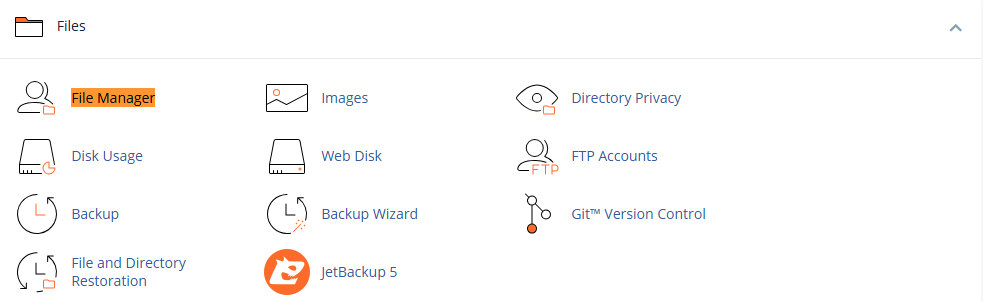
Files → File Manager is a browser-based file explorer. Your main website lives in the public_html folder, and that’s the document root for your primary domain.
What you’ll do most often:
- Upload files with the Upload button (drag and drop works)
- Extract a
.zipdirectly on the server, which is much faster than uploading hundreds of small files individually - Edit a file in place, such as
.htaccessorwp-config.php - Create folders and move things around
One thing trips up almost everyone at least once: files starting with a dot (like .htaccess) are hidden by default. Open Settings in the top-right of File Manager and tick Show Hidden Files (dotfiles).
Our dedicated guide on using the File Manager goes deeper, and we compare it with FTP in File Manager vs FTP.
File Permissions
Permissions control who can read, write, or execute a file. The safe, standard defaults are:
Files:    644
Folders:  755
Never set anything to 777 to “fix” a problem. It makes the file writable by everyone and is one of the most common ways sites get compromised. If something genuinely needs write access, grant it narrowly.
FTP Accounts
For large uploads or working with tools like FileZilla, create a dedicated FTP account under Files → FTP Accounts, and restrict it to a specific directory. Give each developer or contractor their own account so you can remove access later without changing your main password.
Keep Your Disk Tidy
Check Files → Disk Usage now and then. Old backups, abandoned test installs, and leftover .zip files quietly eat storage. Our article on understanding resource limits explains why that matters on shared plans.
Managing Databases in cPanel
Anything dynamic, including WordPress, WooCommerce, and most custom apps, stores its content in a MySQL or MariaDB database. cPanel gives you a point-and-click way to manage it.
Create a Database and User
A database needs two things: the database itself and a user with permission to use it.
- Open Databases → MySQL® Databases
- Under Create New Database, name it and click Create Database
- Under MySQL Users, create a user with a strong password
- Under Add User To Database, select the user and the database, then click Add
- Tick All Privileges (or only what the application needs) and save
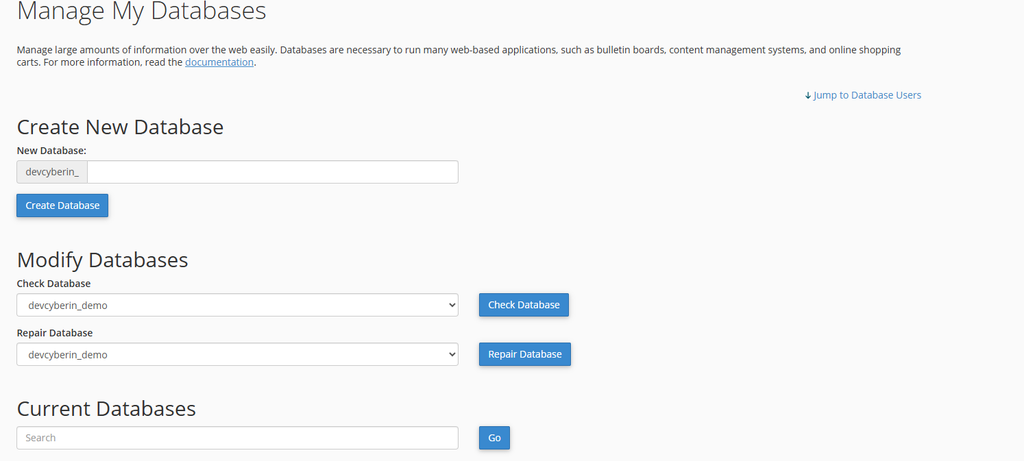
cPanel automatically prefixes both names with your account username, so you’ll end up with something like cpaneluser_wpdb. The MySQL® Database Wizard walks you through the same steps if you prefer a guided flow.
Connect It to Your Application
Your app needs those details. In WordPress, they go in wp-config.php:
php
define('DB_NAME', 'cpaneluser_wpdb');
define('DB_USER', 'cpaneluser_wpuser');
define('DB_PASSWORD', 'your-strong-password');
define('DB_HOST', 'localhost');
Most of the time the host is simply localhost.
phpMyAdmin
For anything beyond creating databases, such as browsing tables, running queries, exporting, and importing, use phpMyAdmin. Export a backup before any manual edit, and be careful with DROP and DELETE commands. Very large imports can hit upload limits depending on server settings, so if an import keeps failing, ask support rather than fighting it. We cover the details in our phpMyAdmin database guide.
Database tips worth following: use a separate database and user for each site, never reuse the cPanel password for a database user, and delete databases for sites you’ve retired.
Securing Your cPanel Account
Your cPanel login controls everything: files, databases, email, and DNS. Protecting it is the highest-value security work you can do. Our full walkthrough on securing your cPanel hosting account goes further, but here are the essentials.
1. Turn On Two-Factor Authentication
Go to Security → Two-Factor Authentication and link an authenticator app. Even if someone gets your password, they can’t log in without the code.
2. Make Sure SSL Is Active and Enforced
Check Security → SSL/TLS Status to confirm your domains have valid certificates. Then, under Domains, turn on Force HTTPS Redirect so visitors can’t land on the insecure version. Our SSL setup guide covers fixing mixed-content warnings too.
3. Block and Protect
- IP Blocker shuts out addresses that keep hammering your site
- Directory Privacy password-protects a folder, which is good for staging sites or admin areas
- Hotlink Protection stops other sites from embedding your images and burning your bandwidth
4. Scan for Malware
If your host enables it, use Files → Virus Scanner for a quick check. If a scan flags something, act on it straight away. Our guide on preventing and recovering from site hacks explains the cleanup steps.
5. Keep Backups You’ve Actually Tested
Use Files → Backup to download a full or partial copy, and store it somewhere other than the server itself. A backup you’ve never restored is only a hope. Our backup and restore guide shows how to test the process safely.
6. Update the Software You Run
Outdated WordPress, themes, plugins, and PHP versions are the most common entry point for attackers. Use Software → Select PHP Version to stay on a supported release, and read how to choose the right PHP version before switching.
For the wider picture, see our web hosting security best practices.
Monthly cPanel Maintenance Checklist
- Download a fresh backup and store it offsite
- Check disk usage and delete clutter
- Review email accounts and remove unused ones
- Confirm SSL is valid on every domain
- Update WordPress core, themes, and plugins
- Review FTP accounts and remove old ones
- Check for errors in the Errors section or logs
- Confirm two-factor authentication is still enabled
A quick monthly review can help identify common issues before they affect your website.
Common cPanel Mistakes to Avoid
- Editing live files without a backup. A small typo in
.htaccesscan take a site down - Using 777 permissions. Fix the cause instead
- Sharing your main cPanel password. Create separate FTP or email users instead
- Ignoring the email quota. Full mailboxes silently reject new mail
- Deleting databases or files you don’t recognize. Check what they belong to first
Frequently Asked Questions
Is cPanel hard to learn?
No. The interface is built for non-technical users, and the four areas above cover most of what you’ll ever need. Give yourself an afternoon and you’ll be comfortable.
Can I break my website in cPanel?
You can, mostly by deleting files, changing permissions, or editing configs without a backup. That’s why backing up first is the one habit worth building early.
What’s the difference between File Manager and FTP?
File Manager works in your browser and is great for quick edits. FTP is better for large or frequent uploads using a dedicated client.
Do I need to create a separate database for every website?
Using a separate database and database user for each website is generally a cleaner approach. It also helps isolate access between different websites.
